
Few things disrupt a student’s day like a computer that refuses to start. That moment of panic when you press the power button and nothing happens is all too familiar. We understand how stressful this situation can be, especially with deadlines looming.
The good news is that most startup issues are solvable at home. Many problems stem from simple glitches rather than serious hardware failure. This guide will walk you through a clear, step-by-step process to get your system running again.
We’ll help you diagnose common problems like a black screen or error messages. You’ll learn to check your power supply, battery, and basic settings. Our approach focuses on safe methods that protect your data and device warranty.
By understanding the boot process, you can identify where the failure occurs. We cover everything from basic checks to advanced recovery options for Windows. Let’s fix this problem together and get you back to your studies.
Key Takeaways
- Most computer startup problems have simple solutions you can try yourself.
- Always begin troubleshooting with basic power and connection checks.
- Understanding the boot process helps identify where failures occur.
- Different issues like black screens or error messages require different approaches.
- Safety first: protect your data and avoid voiding your warranty.
- Many universities offer free tech support resources for students.
- Know when to seek professional help for complex hardware issues.
Understanding Why Your Laptop Won’t Start
Before diving into fixes, it helps to know what might be causing your startup troubles. Many different factors can prevent a successful boot. We’ll explore the most common reasons computers fail to start properly.
Common causes of boot failure
Power-related issues top the list of startup problems. A faulty charger, dead battery, or damaged power port can leave your device without energy. These power problems often show no signs of life when you press the button.
Hardware connections create another category of boot failure. Loose RAM sticks, disconnected internal cables, or peripheral conflicts can halt the process. Your system might power on but fail to progress through startup.
Software glitches frequently disrupt normal operation. Corrupted system files, driver conflicts, or problematic updates can break the boot sequence. These issues might show error messages or endless loading screens.
Malware infections can damage critical startup files. Viruses might corrupt your boot sector or essential system components. This type of problem often requires advanced troubleshooting methods.
Physical damage from accidents affects internal components. Drops can dislodge connections while spills might short-circuit the motherboard. These scenarios typically prevent any power response.
Overheating protection can interrupt the startup process. If components get too hot during boot, safety features may shut everything down. This protects your hardware from permanent damage.
BIOS/UEFI settings misconfigurations block proper startup. Incorrect boot order or secure boot conflicts are common examples. These settings control how your system initializes hardware.
Different types of boot problems
Complete power failure shows absolutely no response. No lights, sounds, or fan movement indicate serious power issues. This suggests problems with your battery, charger, or power circuitry.
Partial startup displays some signs of life. Lights turn on, fans spin, but the screen remains blank. This often points to display, memory, or graphics card issues.
Error messages during startup provide valuable clues. These codes indicate where in the boot process the failure occurred. Different messages require different troubleshooting approaches.
Beep codes from your motherboard signal specific hardware problems. Different patterns correspond to various component failures. Learning these codes helps diagnose issues quickly.
Endless loading or restart loops suggest software corruption. Your system starts but cannot complete the initialization process. This often requires system recovery or repair tools.
Understanding these categories helps you diagnose systematically. You can eliminate possibilities based on what symptoms you observe. This methodical approach saves time and reduces frustration.
Basic Power Checks Every Student Should Try First
When your device shows no signs of life, start with these simple power verification steps. Many startup problems stem from external factors rather than internal failures. We’ll guide you through the most effective initial diagnostics.
Testing Your Wall Outlet and Power Strip
Always begin by verifying your wall outlet functionality. Dorm room electrical systems can sometimes be unreliable. Plug another device like a lamp or phone charger into the same outlet to check for proper current.
Power strips frequently cause unexpected issues. Ensure the strip is switched on and try bypassing it completely. Connect your charger directly to the wall socket for testing purposes.
Verifying Your Charger Is Working Properly
Your power supply unit deserves careful inspection. Look for frayed cables, loose connections, or physical damage on the charger. If possible, test with a known-working charger from a friend.
Modern devices often feature USB-C charging ports. Verify you’re using the correct port, as some may not support power delivery. The charging brick should feel slightly warm when operational.
Check your laptop for charging indicator lights. If these lights don’t activate, the issue likely involves power input rather than internal components.
Checking the Power Button Functionality
The power button sometimes develops mechanical issues. Press it firmly while listening for any internal sounds. Look for indicator lights that might suggest partial activation.
For devices with removable battery options, ensure proper seating and charge levels. Try starting the system with the battery removed using only charger power.
Hold the button down for 10-15 seconds to force a complete shutdown. This action clears temporary glitches that might prevent normal startup.
| Check Type | What to Look For | Quick Solution |
|---|---|---|
| Wall Outlet Test | Other devices not working | Try different outlet |
| Charger Inspection | Frayed cables, no indicator light | Use known-good charger |
| Power Button Test | No click sound, no lights | Hold button 15 seconds |
| Battery Check | Not charging, loose connection | Remove battery, try AC only |
| Power Strip Verification | Switch position, age of unit | Plug directly into wall |
These straightforward verifications resolve many power-related problems quickly. They help eliminate external factors before investigating more complex internal issues. Always start here to save time and avoid unnecessary troubleshooting.
Diagnosing Hardware Connection Issues
External accessories and internal connections can surprisingly be the root of many boot failures. We often overlook how connected devices affect startup processes. This section helps you identify connection-related problems systematically.
Connection problems can manifest in various ways during startup. Some devices conflict with the boot process while others cause complete failure. We’ll guide you through effective diagnostic methods.
Unplugging Unnecessary USB Devices
Begin by disconnecting all non-essential peripherals from your computer. USB drives, external hard drives, and printers often cause conflicts. Even webcams and headsets can interfere with normal startup.
Try starting your system with only basic input devices connected. Use just a keyboard and mouse if possible. In severe cases, attempt startup without any external devices.
This process helps identify if a specific peripheral causes the issue. Faulty USB ports might also prevent successful booting. Test each port individually to isolate problems.
Checking External Monitor Connections
External displays sometimes create startup conflicts. Your system might default to an external monitor as the primary display. This can make your main screen appear blank during boot.
Disconnect any external monitors or projectors completely. Check if your laptop screen activates after disconnection. This simple test resolves many display-related startup problems.
Some docking stations also cause boot issues. Undock your device and try starting it directly. This eliminates the docking station as a potential problem source.
Testing With Minimal Hardware Configuration
Minimal configuration testing helps isolate hardware faults. Remove any recently added components like new RAM or storage drives. Incompatible or improperly installed hardware often causes boot failure.
If comfortable, inspect internal connections carefully. Ensure RAM modules, hard drives, and motherboard cables sit securely. Recent movement might have loosened these components.
Listen for unusual sounds during startup attempts. Grinding or clicking noises from your drive indicate potential failure. These auditory clues help diagnose serious hardware issues.
| Diagnostic Method | What It Identifies | Expected Outcome |
|---|---|---|
| USB Device Removal | Peripheral conflicts | Clean startup without external devices |
| External Monitor Disconnect | Display configuration issues | Laptop screen activation |
| Minimal Hardware Boot | Component compatibility problems | Successful startup with basics only |
| Internal Connection Check | Loose components | Secure connections ensuring proper contact |
| Sound Monitoring | Failing hardware components | Identification of abnormal operational noises |
These diagnostic approaches help pinpoint connection-related issues efficiently. They save time by eliminating unnecessary troubleshooting steps. Always document your findings for future reference.
Listening for Diagnostic Beep Codes
Your computer speaks a secret language during startup. It communicates through beeps that reveal hidden hardware issues. Understanding this audio code can save you hours of frustration.
These sounds occur during the Power-On Self-Test process. Your system checks critical components before loading the operating system. Different patterns indicate specific problems that need attention.
What Different Beep Patterns Mean
A single short beep usually means success. This indicates all hardware passed initial checks. Your computer should continue booting normally after this sound.
Multiple beeps signal various error conditions. Two beeps often indicate memory issues. Three beeps might point to graphics card failures. The exact meaning varies by manufacturer.
Continuous beeping requires immediate attention. This often suggests power supply problems or overheating. You should power down immediately to prevent damage.
No beeps when power is present suggests serious issues. This could mean motherboard failure or speaker disconnection. The absence of sound becomes a diagnostic clue itself.
How to Interpret Motherboard Error Codes
Manufacturers use different beep codes for their devices. Dell systems might use two beeps for RAM errors. HP computers often use three beeps for motherboard problems.
Always consult your device’s manual for specific beep codes. Manufacturer websites provide detailed error code charts. These resources help you identify the exact failing component.
Modern devices sometimes use visual signals instead. Some laptops display error codes on small LED screens. Others use blinking power lights as diagnostic indicators.
For devices without audible beeps, try external solutions. USB speakers can sometimes capture these diagnostic sounds. Diagnostic tools might provide alternative feedback methods.
Proper interpretation directs your troubleshooting efforts efficiently. You’ll know whether to focus on memory, graphics, or power components. This saves time and avoids unnecessary repairs.
Beep patterns act as your computer’s Morse code, telling you exactly where the startup process fails.
Remember that these sounds provide the first clue in hardware diagnosis. They help you understand where the boot process fails. This knowledge empowers you to make informed repair decisions.
We recommend keeping your device’s manual accessible. Bookmark manufacturer support pages for quick reference. These resources become invaluable during emergency situations.
When Your Laptop Powers On But Shows Nothing
That moment when fans spin and lights glow but your screen stays dark can be incredibly frustrating. We’ve all experienced that sinking feeling when everything seems to work except the most important part – the display. This common scenario often has simple solutions you can try before worrying about major repairs.
Many display problems stem from basic settings or connection issues rather than serious hardware failures. We’ll walk you through systematic troubleshooting steps to identify the root cause. These methods help determine whether you’re dealing with a quick fix or something more complex.
Screen Brightness and Display Issues
Sometimes the simplest solutions work best. Your screen might appear completely black due to brightness settings. Try adjusting brightness using keyboard shortcuts like Fn + brightness keys.
Accidental key presses can minimize brightness to zero. This makes the screen appear completely off even though it’s functioning. Always check this basic setting before assuming serious problems.
Power saving modes sometimes cause display dimming during startup. Your system might be conserving energy until the operating system loads completely. Wait a few minutes to see if the display activates.
Testing With an External Monitor
Connecting an external display provides valuable diagnostic information. Use an HDMI or VGA cable to link your device to another screen. This test helps determine where the problem lies.
If the external monitor works perfectly, the issue likely involves your internal display components. The problem could be with the screen itself, video cable, or inverter. This narrows down potential repair needs.
When no display appears on either screen, the problem might be graphics-related. This could indicate issues with your graphics card or display adapter. Further testing helps pinpoint the exact cause.
“The external monitor test is one of the most valuable diagnostics for display issues – it instantly tells you whether the problem is internal or external to your device.”
Graphics Card and Display Adapter Problems
Graphics driver conflicts frequently cause black screens after login. These issues often occur after Windows updates or new software installations. Booting into Safe Mode helps resolve these conflicts.
Hardware problems require different approaches. Try disabling dedicated graphics in BIOS settings if possible. This tests whether integrated graphics can function properly.
Physical damage needs professional attention. Look for screen cracks, backlight failure, or visible damage. These issues typically require component replacement rather than software fixes.
| Problem Type | Common Symptoms | Recommended Solution |
|---|---|---|
| Brightness Settings | Completely black screen with power lights on | Adjust brightness using keyboard shortcuts |
| External Display Test | External monitor works, internal screen blank | Check internal display connections and components |
| Driver Conflicts | Black screen after login or during boot | Boot into Safe Mode to update or roll back drivers |
| Hardware Failure | Cracks, backlight issues, or physical damage | Seek professional repair services |
| Windows Explorer Crash | Black screen with visible cursor movement | Use Ctrl+Shift+Esc to restart Explorer process |
These troubleshooting steps help identify whether you’re dealing with software settings or hardware failure. Always start with the simplest solutions before moving to complex diagnostics. This approach saves time and reduces unnecessary stress.
Remember that many display issues have straightforward fixes. Don’t panic when faced with a blank screen – methodical testing usually reveals the solution. We’re here to guide you through each step of the process.
Accessing and Navigating Your BIOS/UEFI Settings
Sometimes the most powerful solutions hide in your computer’s deepest settings. We’re talking about the BIOS or UEFI interface that controls your hardware before Windows loads. This low-level system manages everything from component initialization to security features.
Many startup problems find their solutions in these settings. Incorrect configurations can prevent successful booting even when hardware works perfectly. Learning to navigate this interface empowers you to fix numerous issues independently.
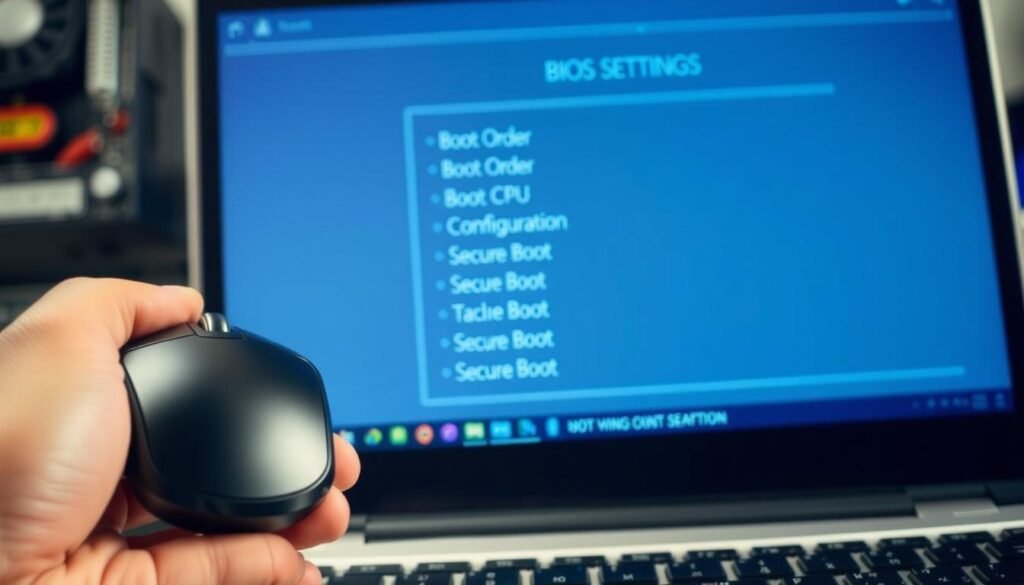
We’ll guide you through accessing and understanding these critical options. You’ll learn manufacturer-specific methods and safe navigation practices. This knowledge helps resolve stubborn startup problems effectively.
How to Enter BIOS on Different Laptop Brands
Each manufacturer uses different keys to access the setup utility. Common options include F2, Delete, F10, or Escape depending on your device brand. Watch carefully during startup for on-screen prompts indicating the correct key.
For Dell systems, typically press F2 repeatedly during power-on. HP devices often use F10 while Lenovo might require F1 or F2. ASUS computers frequently use Delete or F2 for BIOS access.
Timing matters when pressing your designated key. Begin tapping immediately after pressing the power button. Continue until the setup screen appears rather than Windows loading.
Some newer devices with UEFI firmware offer alternative access methods. Windows 10 and 11 allow accessing UEFI through advanced startup options. This provides another entry method if traditional key pressing fails.
Checking Boot Order Settings
Incorrect boot order represents a common startup problem. Your system might try booting from USB or network drives instead of your main hard drive. This creates the impression of complete failure when actually just misconfigured.
Navigate to the Boot tab within your BIOS/UEFI interface. Verify your primary storage drive appears first in the boot sequence. Use keyboard arrows to rearrange the order if necessary.
Also check that all hardware components get properly detected. Your RAM capacity, storage drives, and processor should appear in system information. Missing components indicate connection or hardware problems.
Monitor your CPU temperature readings if available. Overheating during startup can cause automatic shutdowns. This protects your system from potential damage.
Resetting BIOS to Default Settings
When uncertain about configuration changes, resetting provides a clean slate. Most BIOS interfaces offer “Load Optimized Defaults” or similar options. This reverts all settings to manufacturer-approved configurations.
Find this option typically in the Exit or Main menu tab. Selecting it often resolves conflicts caused by incorrect settings. Your system will restart automatically after saving changes.
For more stubborn problems, consider clearing CMOS memory physically. This involves removing the motherboard battery briefly to reset all settings. Consult your device manual before attempting this advanced procedure.
Always document your original settings before making changes. Take photos of each screen if possible. This helps revert specific configurations if needed later.
“BIOS settings act as your computer’s foundation – getting them right often solves problems that seem complex on the surface.”
Remember that BIOS/UEFI modifications carry some risks. Avoid changing advanced settings without understanding their functions. Stick to basic troubleshooting options unless absolutely necessary.
These methods help resolve numerous startup issues related to hardware configuration. They provide powerful tools when standard troubleshooting fails. We recommend practicing these techniques before encountering actual problems.
Understanding the Windows Boot Process
Windows startup follows a precise sequence that helps identify where failures occur. This systematic approach makes troubleshooting more effective when problems arise. We’ll break down each phase to show you what happens behind the scenes.
Knowing this process helps you pinpoint exactly where things go wrong. Different failure points require different solutions. Understanding these stages saves time and reduces frustration.
The four phases of Windows startup
The startup sequence consists of four distinct phases. Each stage handles specific initialization tasks. Problems at different stages show different symptoms.
Phase 1: PreBoot involves hardware initialization. Your system performs power-on self-test (POST) and loads firmware settings. Failures here often indicate hardware issues rather than software problems.
Phase 2: Windows Boot Manager locates the operating system loader. The bootmgr file searches for Windows installation files. Corruption here causes errors like “bootmgr is missing.”
Phase 3: OS Loader prepares essential components. Winload.exe loads the kernel and critical drivers. Failures can result from corrupt drivers or system files.
Phase 4: Kernel Initialization starts the operating system. The kernel loads registry settings and additional drivers. Problems here lead to blue screens or system freezes.
Where boot failures typically occur
Different failure points produce distinct symptoms. Recognizing these patterns helps diagnose issues quickly. We’ll show you what to look for at each stage.
PreBoot issues often show no display or beep codes. The system might not respond to power button presses. These typically indicate hardware connection or power supply problems.
Boot Manager failures display specific error messages. “Operating System not found” suggests partition or boot configuration issues. These require different solutions than hardware problems.
OS Loader problems might show progress indicators that freeze. The Windows logo might appear but never complete loading. Driver conflicts or system file corruption often cause these issues.
Kernel phase failures frequently result in blue screens. Error codes help identify specific driver or memory problems. These require more advanced troubleshooting techniques.
PreBoot vs Boot Loader phase issues
These early stages involve different components. Understanding the distinction helps you choose the right solution. We’ll explain how to tell them apart.
PreBoot problems occur before Windows loads. Your system might not show any signs of life. Beep codes or complete silence indicate firmware or hardware issues.
Boot Loader issues happen after hardware initialization. Error messages appear referencing boot files or partitions. These suggest Windows configuration problems rather than hardware failure.
“Knowing whether a problem occurs before or after the BIOS screen appears is the first step in effective Windows boot troubleshooting.”
Use Windows Recovery Environment for Boot Loader problems. Startup Repair can fix many common configuration issues. This tool automatically scans and repairs boot files.
For kernel phase issues, Safe Mode helps isolate problems. This minimal environment loads only essential drivers. You can then uninstall problematic software or updates.
- Phase 1 failures require hardware diagnostics and connection checks
- Phase 2 issues need boot configuration repairs or partition fixes
- Phase 3 problems often require driver updates or system file repairs
- Phase 4 failures might need memory tests or driver verifier tools
Built-in diagnostics help identify the failing phase. Windows creates logs during startup that record progress. These logs provide valuable clues about where the process stops.
Common mistakes include interrupting updates during these phases. Always allow complete installation processes to finish. Avoid installing incompatible software that might conflict with system drivers.
Understanding these phases empowers you to troubleshoot effectively. You’ll know whether to focus on hardware, configuration, or software issues. This knowledge saves time and prevents unnecessary repairs.
My laptop won’t boot: a troubleshooting guide for students – Advanced Recovery Options
When basic troubleshooting doesn’t resolve your startup problems, Windows provides powerful built-in recovery tools. These advanced options can fix issues that prevent normal operation. We’ll guide you through accessing and using these essential utilities safely.
Accessing Windows Recovery Environment
WinRE provides a special environment for fixing serious system problems. You can access it through several methods depending on your situation. Each approach gets you to the same recovery interface.
For systems that won’t start normally, try the three-time interrupt method. Force shutdown during startup three consecutive times. Windows will automatically launch recovery options on the fourth attempt.
Using installation media offers another reliable access method. Boot from a USB drive or DVD with Windows installation files. Select your language preferences, then choose “Repair your computer” instead of Install.
Once in WinRE, navigate to Troubleshoot > Advanced Options. This menu contains all the recovery tools we’ll discuss. Always back up important files before proceeding with advanced repairs.
Using Startup Repair Tool
The Startup Repair tool automates the diagnosis and fixing of common boot issues. It scans your system for problems preventing normal startup. This utility can resolve many issues without manual intervention.
Common problems it fixes include corrupt system files and boot configuration errors. Missing or damaged boot files often cause startup failures. The tool replaces these files with known good versions.
Startup Repair runs automatically when selected from the Advanced Options menu. The process may take several minutes to complete. Your system will restart automatically after repairs finish.
“Startup Repair has saved countless hours of manual troubleshooting by automatically fixing common boot issues that would otherwise require technical expertise.”
If the tool fails to fix your problem, it provides a diagnostic report. This information helps determine the next steps in your troubleshooting process. Don’t worry if first attempts don’t succeed – some issues require multiple passes.
Command Prompt Troubleshooting Commands
For manual repairs, the Command Prompt offers powerful troubleshooting capabilities. These commands give you direct control over system components. We recommend these tools when automated methods don’t work.
Begin with system file checking using the SFC command. Type sfc /scannow to verify and repair protected system files. This process ensures critical operating system components remain intact.
Disk checking commands help identify storage problems. Run chkdsk /r to scan for file system errors and bad sectors. This command can fix many disk-related issues causing startup failures.
BOOTREC commands specifically target boot-related problems. These tools repair various boot configuration issues:
- bootrec /fixmbr repairs the master boot record
- bootrec /fixboot writes a new boot sector
- bootrec /scanos finds Windows installations
- bootrec /rebuildbcd rebuilds the boot configuration data
For system image repairs, use DISM commands. Type DISM /Online /Cleanup-Image /RestoreHealth to repair the Windows image. This works when the SFC command cannot fix corrupted files.
| Command | Purpose | When to Use |
|---|---|---|
| sfc /scannow | System file verification | Corrupt system files causing errors |
| chkdsk /r | Disk error checking | Storage drive issues or bad sectors |
| bootrec /fixmbr | Master boot record repair | MBR corruption or damage |
| bootrec /rebuildbcd | BCD store reconstruction | Boot configuration problems |
| DISM /RestoreHealth | Windows image repair | When SFC cannot fix corrupted files |
These advanced recovery options provide powerful solutions for stubborn startup problems. They help resolve issues that prevent normal system operation. Always follow instructions carefully to avoid unintended consequences.
Remember that these tools modify critical system components. Create backups before proceeding with advanced repairs. Document any changes you make for future reference.
Booting Into Safe Mode for Diagnosis
When your computer acts up during startup, Safe Mode becomes your best friend. This special diagnostic environment helps isolate software conflicts that prevent normal operation. We’ll show you how to access this powerful tool and use it effectively.
Safe Mode loads only essential components of your operating system. It bypasses many third-party drivers and startup programs. This minimal approach helps identify what’s causing your startup problems.
Three Methods to Access Safe Mode
Modern Windows versions make accessing Safe Mode different than before. The classic F8 method rarely works on newer systems. We’ll guide you through three reliable approaches.
Method one involves interrupting the startup process three times. Hold the power button during boot to force shutdown. Repeat this twice more, and on the fourth attempt, you’ll see the Automatic Repair screen.
Method two requires installation media. Boot from a Windows USB or DVD drive. Select “Repair your computer” instead of Install. Navigate to Troubleshoot > Advanced Options > Startup Settings.
Method three works for systems with legacy boot enabled. Use the command bcdedit /set {default} bootmenupolicy legacy to enable F8 access. Press F8 during startup to see advanced boot options.
What Safe Mode Can Help You Diagnose
Safe Mode provides a clean environment for troubleshooting. It loads minimal drivers and services. This helps identify whether problems stem from software or hardware issues.
If your system starts successfully in Safe Mode, the issue likely involves software. Recent driver updates or program installations might be causing conflicts. This knowledge directs your troubleshooting efforts appropriately.
When problems persist even in Safe Mode, hardware issues become more likely. This suggests deeper system problems that require different solutions. The diagnostic value here saves considerable time.
“Safe Mode acts like a detective that eliminates suspects – when your system works here, you know the problem lies in something that doesn’t load in this minimal environment.”
Uninstalling Problematic Drivers and Software
Once in Safe Mode, you can address software-related issues. Open Device Manager to review your drivers. Look for recently updated components that might be causing conflicts.
Roll back drivers to previous versions if available. This often resolves compatibility problems introduced by updates. Pay special attention to graphics and network adapters.
Uninstall recently added programs that might be causing issues. Some applications install background services that interfere with startup. Removing them can restore normal operation.
Use System Restore to revert to a previous stable configuration. This option undoes system changes without affecting personal files. It’s particularly useful after problematic updates.
Scan for malware using your antivirus software. Some infections prevent normal mode operation but become detectable in Safe Mode. This helps eliminate security-related startup problems.
Check Event Viewer for error logs that pinpoint specific failures. These records show what services or drivers crash during normal startup. The information guides your repair efforts.
For internet access needs, choose Safe Mode with Networking. This option loads network drivers while maintaining minimal operation. You can download necessary tools or updated drivers.
These diagnostic steps help identify and resolve software-related startup issues. They provide powerful troubleshooting capabilities when normal mode fails. Always document your findings for future reference.
Fixing Boot Loader and BCD Issues
Sometimes your computer’s startup files get corrupted or misplaced. These critical components tell your hardware how to load the operating system. When they fail, you might see specific error messages instead of normal startup.
We’ll guide you through repairing these essential files using built-in Windows tools. These methods help resolve problems that prevent successful loading of your operating environment. Always back up important data before attempting these advanced repairs.
Using BOOTREC Commands
The BOOTREC utility offers powerful solutions for various startup problems. You access these commands through the Windows Recovery Environment. They help fix different components of the boot process.
For master boot record issues, use BOOTREC /FIXMBR. This command repairs corruption without affecting your partitions. It’s particularly useful for older systems using traditional BIOS.
When dealing with boot sector problems, try BOOTREC /FIXBOOT. This writes a new boot sector to your system partition. It resolves errors like “NTLDR is missing” on appropriate systems.
First, identify existing installations with bootrec /ScanOs. This command finds all Windows versions on connected drives. It’s especially helpful for multi-boot configurations.
“BOOTREC commands provide surgical precision for fixing specific boot components – they often resolve issues that seem complex with just a few simple commands.”
Rebuilding BCD Store
The Boot Configuration Data store manages how your system starts. Corruption here causes various error messages during the boot process. Rebuilding this component often resolves stubborn startup problems.
Use bootrec /RebuildBcd to recreate the BCD store. This command scans for installations and rebuilds the configuration. It fixes errors like “BOOTMGR is missing” effectively.
If automatic rebuilding fails, try manual reconstruction. Use bcdedit commands to create a new BCD store from scratch. This approach requires more technical knowledge but offers complete control.
For UEFI systems, check EFI partition integrity carefully. Use commands like bcdboot C:\Windows to repair boot files. This ensures proper configuration for modern firmware environments.
Repairing Master Boot Record
The master boot record contains essential information about your disk partitions. Corruption here prevents your system from locating the operating system. Repairing this component restores proper startup functionality.
MBR issues often show specific error messages during boot. You might see references to missing operating systems or invalid partition tables. These indicate the need for MBR repair procedures.
After running repair commands, always restart your system. Test whether each fix resolves the specific problem you encountered. This helps identify which component was causing the failure.
For severe corruption, consider replacing the bootmgr file manually. Copy this file from a working system or installation media. Place it in the appropriate system reserved partition.
| Command | Primary Function | Common Error Fixed |
|---|---|---|
| BOOTREC /FIXMBR | Repairs master boot record | Invalid partition table errors |
| BOOTREC /FIXBOOT | Writes new boot sector | “NTLDR is missing” messages |
| bootrec /ScanOs | Finds Windows installations | “Operating system not found” |
| bootrec /RebuildBcd | Rebuilds BCD store | “BOOTMGR is missing” errors |
| bcdboot C:\Windows | Repairs UEFI boot files | EFI system partition issues |
These repair methods are particularly important for dual-boot systems. They also help after disk cloning operations where boot files might get misplaced. Always proceed carefully with these advanced troubleshooting steps.
Remember that these fixes modify critical startup components. Create system restore points when possible before making changes. Document each step for future reference if needed.
Scanning for Malware and System File Corruption
Hidden threats like malware and file corruption can silently sabotage your computer’s startup process. These issues often develop gradually until they suddenly prevent normal operation. We’ll show you how to detect and repair these problems using specialized tools.
Many startup failures stem from damaged system files or malicious software. These problems require different approaches than hardware issues. Our methods help identify the exact cause of your boot problems.
Using Live CD Environments for Scanning
Live environments let you scan for threats without loading your operating system. Tools like Hiren’s Boot CD run from a USB drive. This approach helps detect malware that hides during normal startup.
Create bootable media using trusted antivirus solutions. Windows Defender Offline provides excellent built-in protection. Third-party options offer additional scanning capabilities for stubborn infections.
These environments provide complete system access without risking further damage. They can remove deeply embedded threats that normal antivirus software might miss. This process often resolves persistent startup issues.
Running SFC and CHKDSK Commands
System File Checker verifies your critical operating system components. Type sfc /scannow in Command Prompt to begin the process. This tool automatically replaces corrupted files with healthy versions.
For more serious corruption, use the DISM tool first. Run DISM /Online /Cleanup-Image /RestoreHealth to repair the Windows image. This prepares the system for successful SFC operation.
Check Disk utility examines your storage drive for physical problems. The command chkdsk C: /r scans for errors and bad sectors. This process can recover readable data and mark damaged areas.
Checking for Disk Errors and Bad Sectors
Regular disk maintenance prevents many startup problems. Tools like CrystalDiskInfo monitor your drive’s health status. Manufacturer utilities provide additional diagnostic capabilities.
Bad sectors can develop over time, leading to data loss and boot failures. These damaged areas prevent proper file reading during startup. Regular scanning helps identify problems before they cause complete failure.
For persistent errors, consider upgrading to a solid-state drive. SSDs offer better reliability and faster performance. This upgrade often resolves chronic disk-related startup issues.
“Regular system scanning and maintenance can prevent 80% of software-related boot problems before they occur.”
| Tool | Primary Function | Best For |
|---|---|---|
| Live CD Environments | Malware scanning outside Windows | Stubborn infections preventing normal boot |
| SFC /scannow | System file verification and repair | Corruption from updates or crashes |
| CHKDSK /r | Disk error checking and recovery | Bad sectors and file system errors |
| DISM Tool | Windows image repair | Serious system file corruption |
| CrystalDiskInfo | Drive health monitoring | Predictive failure analysis |
These scanning methods provide comprehensive protection against software-related startup issues. They help maintain system stability and prevent future problems. Regular maintenance extends your device’s lifespan significantly.
Always back up important files before running repair tools. This protects your data against unexpected issues during the repair process. We recommend cloud storage or external drives for reliable backups.
Recovering Your Important Files and Data
When your computer won’t start, your most urgent concern is often recovering important files and documents. We understand how stressful this situation can be, especially with academic deadlines approaching. Fortunately, several effective methods exist to access your data even when the operating system fails.

Before attempting any recovery steps, ensure your device is completely powered off. Remove the battery if possible to prevent accidental damage. These precautions protect both your data and hardware during the recovery process.
Removing Hard Drive to Access Files
Physical drive removal offers the most direct access to your files. Most modern laptops allow relatively easy access to storage components. You’ll need a USB adapter or enclosure to connect the drive to another working system.
Follow these steps for safe drive removal:
- Consult your device manual for specific removal instructions
- Use proper tools to avoid damaging screws or components
- Handle the drive carefully by its edges to prevent static damage
- Connect via USB adapter to another computer for file access
If the drive isn’t detected, try different USB ports or computers. This helps determine whether the issue lies with the drive itself or the connection method.
Using Linux Live Environments
Linux live environments provide excellent alternatives when you lack another computer. Tools like Ubuntu Live USB boot independently of your Windows installation. They can access your files without affecting the existing operating system.
Creating a bootable USB is straightforward with tools like Rufus or Etcher. Simply download a Linux ISO file and follow the creation instructions. This approach lets you copy files to external storage directly.
“Linux live environments have saved countless students’ academic work by providing access to files when Windows refuses to cooperate.”
Data Recovery Software Options
Specialized recovery software can rescue files from problematic drives. Applications like Recuva or TestDisk work with various file systems and storage types. They often recover data that seems permanently lost.
For best results, run recovery software from another system with your drive connected externally. Avoid installing new software on the problematic drive itself. This prevents overwriting potentially recoverable data.
If your drive makes unusual clicking or grinding noises, stop immediately. These sounds indicate physical damage requiring professional recovery services. Continued operation might cause permanent data loss.
Many universities offer free data recovery services for students. Check your campus IT department for available resources. They often have professional tools and expertise for complex recovery situations.
Cloud backups and file history features provide excellent protection against data loss. Services like OneDrive or Google Drive automatically sync your important documents. Regular backups ensure you always have access to your latest work.
Remember that prevention beats recovery every time. Establish a consistent backup routine for your academic materials. This simple habit saves countless hours of stress and potential data loss.
When to Seek Professional Help
Even the most determined troubleshooting eventually reaches its limits. Recognizing when to call in experts saves both time and potential damage to your device. We’ll help you identify the clear signs that professional assistance becomes necessary.
Some hardware failures simply require specialized tools and expertise. Attempting complex repairs without proper training often worsens the original problem. Knowing your limits protects both your device and your academic progress.
Signs You Need Technical Support
Persistent blue screens with specific error codes indicate serious system issues. When these occur consistently despite your troubleshooting steps, professional diagnosis becomes essential. These errors often point to failing components that need replacement.
Physical damage always warrants expert attention. Cracked screens, liquid spills, or noticeable component damage require proper repair techniques. DIY attempts on these problems typically cause additional damage.
If critical hardware doesn’t appear in BIOS detection, professional help is needed. Missing RAM, storage drives, or other components suggest connection or failure issues. These require technical expertise to resolve properly.
Warranty and Repair Options for Students
Always check manufacturer warranty status before attempting any repairs. Most devices include at least one year of coverage for hardware failures. Warranty service often provides free repairs for qualified issues.
For out-of-warranty devices, third-party repair shops offer affordable solutions. Read reviews and compare quotes before selecting a service provider. Many specialize in student laptop repairs with academic discounts.
“University tech support centers often provide free diagnostics and low-cost repairs – always check campus resources before paying for commercial services.”
Manufacturer support forums provide valuable guidance before seeking paid repairs. Many companies offer online chat support that can help determine if professional service is actually needed. This can save both time and money.
University Tech Support Resources
Most campuses maintain excellent technology support services for students. These facilities typically offer free diagnostics and virus removal services. They understand academic pressures and often provide quick turnaround times.
University tech centers frequently offer hardware repair services at reduced rates. They can replace power supply units, battery components, and other common failing parts. Some even provide loaner devices during repair periods.
Take advantage of campus software licensing programs. Many universities provide free or discounted operating system licenses and security software. These resources help maintain system health after repairs.
Knowing when to stop troubleshooting protects your academic work. During exam periods especially, professional repair often becomes the most time-efficient solution. This ensures you can fix problem situations quickly and return to your studies.
Conclusion
We’ve walked through the essential steps to resolve common computer startup problems. From basic power checks to advanced recovery options, these methods help fix most issues.
Remember that regular maintenance prevents many problems. Keep your system updated and create backups. This protects your work and saves time.
University tech support offers great resources for students. Use warranties and campus services when needed. These options make repairs more affordable.
We hope this guide gives you confidence to handle computer issues. For more help, visit our community forum. Happy computing!
FAQ
What should I do first if my laptop won’t turn on at all?
Start with basic power checks. Test your wall outlet, verify your charger is working, and ensure the power button functions. Also, try removing the battery and running on direct power.
Why does my laptop power on but show a black screen?
This could indicate display issues. Check your screen brightness, test with an external monitor, or consider graphics adapter problems. It might also relate to RAM or motherboard errors.
How can I access Safe Mode if Windows won’t boot normally?
You can access Safe Mode by interrupting the startup process three times to trigger Automatic Repair, then navigate to Advanced Options → Startup Settings. Alternatively, use a Windows installation USB to access recovery options.
What do beep codes mean when my laptop starts up?
Beep codes are hardware error signals from your motherboard. Different patterns indicate specific issues—for example, continuous beeps often mean RAM problems, while short beeps may signal graphics card errors.
How do I enter BIOS/UEFI settings on my laptop?
Common keys include F2, Del, F10, or Esc, depending on your brand. Press repeatedly during startup. For Windows 10/11, you can also access UEFI through Advanced Startup in Settings.
Can I recover my files if my laptop won’t boot?
Yes. Remove the hard drive and connect it to another computer, use a Linux live USB, or employ data recovery software through a bootable environment to access your important files.
When should I seek professional help for boot issues?
If you’ve tried basic troubleshooting, hardware diagnostics, and recovery options without success, or if you suspect hardware failure like a dead motherboard or failing hard drive, it’s time to consult a professional.