Did you know that over 60% of laptop users experience battery anxiety before reaching their daily productivity goals? This startling statistic highlights a common struggle for students and professionals across Nigeria.
Most portable computers offer between 3 and 10 hours of runtime on a single charge. If your device drains faster than expected, don’t worry! Simple adjustments can dramatically restore its performance.
We understand how frustrating constant charging can be, especially with Nigeria’s unique power challenges. That’s why we’ve created this practical guide specifically for our audience.
Our methods work beautifully with popular brands like Infinix, Redmi, and Samsung. You’ll discover affordable solutions that require no technical expertise.
By implementing these straightforward strategies, you can potentially add 30 minutes or more to your daily usage. Stay productive without being tethered to power outlets!
Key Takeaways
- Most portable computers provide 3-10 hours of runtime per charge
- Simple adjustments can significantly extend your device’s operating time
- Screen brightness management can add substantial extra usage minutes
- Overheating dramatically reduces performance and causes long-term damage
- Built-in power tools in Windows and macOS automate energy savings
- Solutions are tailored for Nigerian conditions like heat and power fluctuations
- These methods work effectively across popular brands like Infinix and Samsung
Understanding Your Laptop’s Battery Limitations
Many users wonder why their portable computer doesn’t last as long as advertised. The truth is, manufacturers test under ideal conditions that rarely match real-world use.
Most modern devices offer between 3 and 10 hours of operation per charge. This range depends heavily on your specific model and how you use it.
Typical Runtime Ranges for Modern Devices
Entry-level models often provide 3-5 hours of active use. Mid-range devices typically achieve 6-8 hours. Premium ultrabooks can reach 10+ hours in optimal conditions.
Your actual results will vary based on several factors. Screen brightness, running applications, and connected accessories all play crucial roles.
Factors Affecting Performance in Nigerian Conditions
Nigeria’s tropical climate presents unique challenges. High ambient temperatures accelerate chemical degradation inside power cells.
Constant heat exposure reduces overall capacity over time. This means your device gradually holds less charge than when it was new.
Power fluctuations common in many areas also impact longevity. Voltage spikes from generators or unstable grid power can damage charging circuits.
Dust accumulation is another significant concern. It clogs ventilation systems and causes overheating during operation.
Resource-intensive applications dramatically reduce operating time. Video editing, gaming, and multiple browser tabs consume power rapidly.
Using non-original chargers often provides incorrect voltage levels. This practice can permanently damage your power cell’s health.
We recommend monitoring your system’s power health regularly. Built-in diagnostics tools provide valuable insights into current capacity.
Simple precautions make a big difference. Avoid direct sunlight exposure and use surge protectors with unstable power sources.
Understanding these limitations helps you personalize the following tips. You’ll learn exactly which adjustments will deliver the best results for your situation.
Optimize Your Screen Settings for Maximum Efficiency
Your display consumes more energy than any other component. Smart adjustments here deliver the fastest results for extending usage time.
We’ll guide you through three simple changes that work instantly. These require no technical knowledge and cost nothing to implement.
Adjusting Brightness Levels for Optimal Power Savings
Reducing brightness is the single most effective display adjustment. Even a small decrease can add 30 minutes of extra usage.
Use keyboard shortcuts (Fn keys with sun icons) for quick adjustments. Alternatively, access brightness options through your system settings.
We recommend keeping levels at 50-70% for indoor environments. Only increase when absolutely necessary outdoors.
Setting Appropriate Screen Timeout Intervals
Configure your display to turn off quickly during inactivity. This prevents unnecessary energy waste when you step away.
Set timeout to 60 seconds or less for maximum conservation. This simple change preserves valuable battery power throughout the day.
Both Windows and macOS offer straightforward settings for this. The process takes under a minute to complete.
Choosing Power-Efficient Wallpapers and Screensavers
Dark backgrounds require less energy to display than bright images. This applies to both OLED and LCD screen technologies.
Avoid animated screensavers that keep your GPU active. Instead, choose static dark images that minimize power consumption.
Here’s a quick comparison of effective display settings:
| Setting Type | Power-Saving Option | Power-Draining Option | Estimated Time Saved |
|---|---|---|---|
| Brightness Level | 50-70% | 100% | 25-30 minutes |
| Timeout Interval | 60 seconds | 5 minutes | 15-20 minutes |
| Wallpaper Color | Dark/Black | White/Bright | 5-10 minutes |
| Screensaver Type | Static Image | Animated | 10-15 minutes |
Modern systems include adaptive brightness features that automatically adjust based on ambient light. Enable this option for hands-free optimization.
By implementing these straightforward adjustments, you’ll notice immediate improvements in your device’s endurance. These changes work beautifully across all major brands and operating systems.
Manage Your Laptop’s Temperature Effectively
Heat is the silent enemy of your portable computer’s longevity. Many users overlook this crucial aspect until they face serious performance issues.
We’ll show you simple yet effective ways to keep your machine cool. These methods work wonders in Nigeria’s warm climate conditions.
Why Overheating Damages Battery Health
Excessive heat causes chemical degradation inside power cells. This process reduces overall capacity and shortens lifespan significantly.
High temperatures from Nigerian heat can cause batteries to swell. In severe cases, this leads to complete failure requiring replacement.
“Heat accelerates battery aging faster than any other factor. Keeping your device cool is the simplest way to preserve its health.”
Overheating prevents normal charging cycles. It also affects other components beyond just the power cell.
Proper Ventilation and Cooling Techniques
Always place your machine on hard, flat surfaces. Avoid soft materials like beds or couches that block airflow.
Use cooling pads for better airflow during intensive tasks. These affordable accessories make a noticeable difference.
Keep your device in well-ventilated areas away from direct sunlight. Never leave it in hot cars or sunny spots.
If your machine overheats, turn it off completely. Remove the power cell if possible to accelerate cooling.
Cleaning Vents and Fans for Better Airflow
Dust accumulation is a major problem in Nigerian environments. It clogs ventilation systems and causes overheating.
Clean vents monthly using compressed air. Pay extra attention after exposure to dusty conditions.
Maintain a clean desk to prevent dust from entering vents. Internal buildup is harder to remove and may void warranties.
If the fan becomes noisy or runs constantly, seek professional repair. This often indicates internal issues needing attention.
Here’s a quick guide to temperature management practices:
| Practice | Benefit | Frequency | Time Investment |
|---|---|---|---|
| Vent Cleaning | Prevents overheating | Monthly | 5 minutes |
| Surface Selection | Ensures proper airflow | Always | None |
| Temperature Monitoring | Early problem detection | Weekly | 2 minutes |
| Cooling Pad Use | Reduces heat during use | As needed | None |
Use software tools to monitor temperature regularly. These applications provide alerts before overheating becomes critical.
These practices not only extend your device’s life but protect all components from heat-related damage. Simple habits make a big difference in the long run.
Remember that prevention is always better than repair. Regular maintenance helps avoid costly replacements down the line.
Disconnect Unnecessary Peripherals and Accessories
Many people don’t realize how much energy external gadgets consume. Even when idle, these devices quietly drain your machine’s resources. We’ll show you smart ways to manage accessories for better efficiency.
How External Devices Drain Your Battery
Every connected gadget draws energy from your system. USB drives, mice, and headphones use power even when not active. This constant drain reduces your available runtime significantly.
Wireless accessories like Bluetooth headphones constantly search for connections. This background activity consumes valuable energy throughout the day.
Portable hard disks and webcams are particularly power-hungry. They require substantial energy to operate properly. Removing them when not needed preserves your device’s power.
Essential vs Non-Essential Peripherals
Identify which accessories you truly need for each task. Essential items might include keyboards for typing. Non-essential devices include external DVD drives or extra speakers.
Ask yourself: “Do I need this accessory right now?” If the answer is no, disconnect it immediately. This simple habit saves a lot of energy over time.
Prioritize built-in features over external options. Your machine’s touchpad and speakers often use less power. They provide perfectly good functionality for most tasks.
Proper USB Device Management
Unplug USB items immediately after use. Don’t leave them connected “just in case.” This prevents unnecessary power drain throughout your work session.
Avoid using USB hubs when possible. These devices multiply power draw from multiple connected gadgets. Direct connection is usually more efficient.
Remember to remove DVDs from your drive. The optical drive may spin periodically to check for data. This activity wastes precious energy unnecessarily.
Here’s a quick guide to peripheral power consumption:
| Peripheral Type | Power Usage Level | When to Disconnect | Estimated Savings |
|---|---|---|---|
| USB Flash Drive | Low | After file transfer | 5-10 minutes |
| External Mouse | Medium | When using touchpad | 15-20 minutes |
| Portable Hard Drive | High | After backup completes | 30-45 minutes |
| Webcam | Medium-High | After video call ends | 20-30 minutes |
| Bluetooth Headphones | Medium | When not listening | 15-25 minutes |
Develop the habit of unplugging everything before switching to battery operation. This ensures maximum efficiency from your power source.
These practices are especially valuable in Nigeria. They help offset challenges with unreliable electricity access. You gain extra usage time when you need it most.
Proper peripheral management offers one of the easiest ways to extend your machine’s runtime. You can gain significant additional minutes or even hours daily.
Close Background Applications and Processes
Hidden programs silently drain your device’s energy while you work. We’ll show you how to identify and manage these resource-hungry elements.
Many users don’t realize how much power background activities consume. These invisible processes can shorten your usage time significantly.
Our methods work across Windows and macOS systems. You’ll learn simple techniques that require no technical expertise.
Identifying Power-Hungry Applications
Task Manager (Windows) and Activity Monitor (macOS) reveal energy usage. These built-in tools show which programs consume the most resources.
Look for applications using high CPU or memory percentages. Video editors and browser tabs often top this list.
Cloud sync services and update checkers run unnoticed in the background. Disable them when operating on battery power.
Managing Browser Tabs and Extensions
Too many open tabs dramatically reduce your available runtime. Each tab consumes memory and processing power.
Video content and ad-heavy websites drain energy fastest. Close these when not actively watching or reading.
Browser extensions can also impact performance significantly. Remove unused add-ons to improve efficiency.
Use bookmarking tools to save sessions without keeping tabs open. This preserves your workflow while conserving power.
Using Task Manager to Monitor Resource Usage
Regular monitoring helps identify problematic programs early. Check your task manager weekly for unusual activity.
Sort processes by CPU or memory usage to spot offenders. Shut down anything consuming excessive resources.
Audit startup programs to prevent unnecessary apps from launching. This prevents automatic background activity.
Develop the habit of closing applications after use. This simple practice keeps your system running efficiently.
Here’s a quick guide to managing background activities:
| Activity Type | Power Impact | Management Method | Time Saved |
|---|---|---|---|
| Browser Tabs (10+) | High | Bookmark and close | 25-35 minutes |
| Video Streaming | Very High | Pause when not watching | 40-50 minutes |
| Cloud Sync Services | Medium | Disable on battery | 15-20 minutes |
| Background Updates | Medium-High | Schedule for charging time | 20-30 minutes |
| Unused Extensions | Low-Medium | Remove unnecessary add-ons | 10-15 minutes |
These practices are particularly valuable in Nigeria. They help maximize usage during power fluctuations.
Students and professionals benefit from keeping only essential apps running. This ensures your device’s energy dedicates to primary tasks.
Regular maintenance improves both battery life and overall system performance. You’ll enjoy faster operation and longer usage between charges.
Essential laptop battery life hacks for daily use
Your charging routine directly impacts how long your device serves you. Many people develop habits that unknowingly reduce their machine’s longevity.
We’ll share simple practices that preserve your power cell’s capacity. These methods work beautifully with popular Nigerian brands like Infinix and Redmi.
Proper Charging Habits and Cycles
Avoid keeping your machine plugged in constantly. This practice prevents your power cell from experiencing natural cycles.
Use only the original charger that came with your device. Third-party options may provide incorrect voltage levels.
Turn off your computer completely each day instead of using sleep mode. This helps recalibrate its charge holding ability.
When to Plug In and When to Unplug
Connect your charger when levels drop below 20%. This prevents deep discharge cycles that stress the system.
Unplug around 80% for optimal battery health. Avoid frequent full charges unless preparing for extended use.
If possible, avoid using your device while charging. This combination generates excess heat that slightly shortens lifespan.
Maintaining Optimal Percentage Ranges
Keep your charge between 50% and 80% for long-term health. Extreme levels at both ends cause unnecessary stress.
For Nigerian users, we recommend full charges before expected power outages. Use power-saving modes during unpredictable electricity periods.
Monitor your cycle count through built-in system tools. This helps you know when your power cell might need replacement.
“Consistent charging habits preserve your device’s capacity much longer than random charging patterns.”
These practices are particularly valuable for affordable devices. Replacement costs add up quickly for students and professionals.
By following these daily routines, you’ll extend your power cell’s lifespan significantly. You’ll enjoy reliable performance throughout your device’s life.
Keep Your Operating System Updated
Your computer’s foundation plays a crucial role in power efficiency. Many users overlook how much energy outdated software consumes daily.
We’ll show you why regular updates matter for your device’s endurance. These simple maintenance steps require minimal effort but deliver significant results.
How Updates Improve Power Management
Modern operating systems receive constant optimization from developers. Each update includes refined energy management algorithms.
These improvements help your device allocate resources more efficiently. They fix background processes that might drain power unnecessarily.
Updated drivers communicate better with your hardware components. This coordination reduces energy waste during everyday tasks.
Newer versions often include advanced power monitoring tools. These features provide valuable insights into your usage patterns.
Updating Windows for Better Performance
Microsoft regularly releases optimizations for their operating system. These updates address various power consumption issues.
Navigate to Start > Settings > Update & Security to check for available patches. Install all recommended updates for optimal performance.
Windows 11 includes enhanced battery health monitoring features. These tools help you understand your device’s power behavior.
Enable automatic updates to ensure you never miss critical improvements. This setting maintains your system’s efficiency effortlessly.
Maintaining macOS for Optimal Power Efficiency
Apple’s ecosystem benefits from regular software enhancements. These updates often include power management refinements.
Access System Preferences > Software Update to install available upgrades. Click “Update Now” to get the latest energy-saving features.
macOS Monterey introduced advanced power management options. These settings help extend your device’s usage time significantly.
For Nigerian users with limited data, schedule updates during off-peak hours. Connect to Wi-Fi to avoid using your mobile data allowance.
“Regular system updates provide the most effective power optimization. They work silently in the background to improve your experience.”
Keeping your operating current also protects against security threats. Malicious software often causes excessive resource usage that drains power.
This maintenance habit complements all other power-saving methods. It ensures your device operates at peak efficiency throughout its lifespan.
We recommend checking for updates at least monthly. This simple routine helps maintain optimal performance in Nigerian conditions.
Utilize Built-in Power Management Tools
Your device contains powerful automation features that handle energy conservation for you. These integrated systems work silently in the background to maximize your usage time without constant manual adjustments.
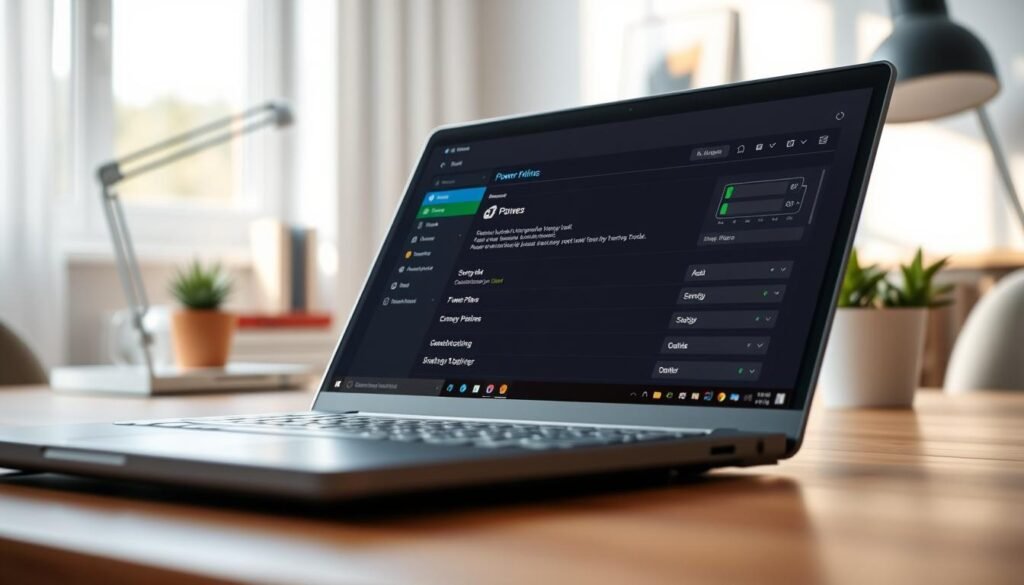
We’ll explore the excellent built-in tools available on both major platforms. These features adapt to your usage patterns while providing significant power savings.
Windows Battery Saver and Power Plans
Windows offers several pre-configured energy management profiles. The power saver mode reduces background activity and adjusts performance.
Access these power options through your system tray battery icon. Click it to reveal a slider with different performance levels.
The Balanced plan provides good performance for everyday tasks. Power Saver maximizes runtime by limiting processor speed and background apps.
High Performance mode unlocks full capability when plugged into reliable electricity. This is perfect for gaming or video editing sessions.
macOS Battery Optimization Features
Apple’s ecosystem includes intelligent energy management tools. These settings learn from your habits to provide optimal efficiency.
Navigate to System Preferences > Battery to access these controls. Here you’ll find options for both power adapter and battery operation.
Enable “Optimize video streaming” to reduce data usage during playback. This setting preserves energy while maintaining good video quality.
Disable Power Nap feature when running on battery power. This prevents background updates from consuming precious energy.
Customizing Power Settings for Your Needs
Both systems allow deep customization of energy management. You can create personalized profiles for different usage scenarios.
Windows users can develop custom plans through Control Panel. These tailored configurations match your specific work patterns perfectly.
For Nigerian conditions, we recommend aggressive power-saving presets. These help extend usage during frequent electricity interruptions.
macOS Monterey introduced optimized battery charging technology. This feature learns your routine to reduce wear on your power cell.
“Built-in power management tools provide the most effortless way to extend your device’s runtime. They automate optimization based on your actual usage patterns.”
Enable “Slightly dim the display while on battery” for instant savings. This small change adds valuable minutes to your daily usage.
These integrated features work beautifully across popular Nigerian brands. They require no technical knowledge to implement effectively.
By mastering these tools, you gain consistent energy optimization. Your device automatically adapts to provide maximum efficiency throughout your day.
Advanced Hardware Considerations
Did you know that simple hardware upgrades can significantly boost your device’s efficiency? We explore smart investments that complement the tips shared earlier.
Switching to an SSD uses less power than traditional drives. It also speeds up your machine noticeably.
Consider adding more RAM to reduce hard drive activity. This saves energy and improves overall performance.
For older devices, replacing the power cell might be necessary. Trusted third-party options offer affordable solutions.
Always source parts from reputable vendors in Nigeria. This avoids counterfeit items that harm your device.
Monitor your battery health through built-in tools. This helps you decide when upgrades are truly needed.
These hardware tweaks, combined with our previous advice, maximize daily reliability. They offer long-term benefits for students and professionals alike.
FAQ
How long should my laptop battery last on a full charge?
Most modern laptops offer between 6 to 12 hours of battery life under normal usage, but this can vary based on your device’s age, model, and how you use it.
Does screen brightness really affect battery life that much?
Yes! Reducing your screen brightness is one of the easiest ways to save power. Even a small drop can add minutes or hours to your usage time.
Is it bad to leave my laptop plugged in all the time?
Keeping your laptop constantly at 100% charge can strain the battery over time. For best health, try to keep it between 20% and 80% when possible.
How can I tell which apps are draining my battery the fastest?
On Windows, use the Battery section in Settings. On macOS, check Activity Monitor. Both show which apps use the most power.
Do background apps really use that much power?
A> Absolutely. Apps running in the background—especially those syncing email or updating—can significantly reduce your battery life. Close what you aren’t using.
Will updating my operating system help with battery life?
Yes, updates often include optimizations for power management. Keeping your OS up to date can lead to better efficiency and longer battery life.
Should I use Battery Saver mode all the time?
Battery Saver mode is great when you need to extend your time unplugged, but it limits performance. Use it when necessary, but switch back for full functionality.
How does heat affect my laptop’s battery?
High temperatures can degrade battery health over time. Always ensure proper ventilation, avoid using your laptop on soft surfaces, and keep fans clean.