We know switching phones can feel like a chore. In this guide, we walk you through a clear, step-by-step process so you can move everything important from your current phone to your next one without stress or lost information.
Moving to a new Android often works by cable or wirelessly during setup, where you choose what to copy — apps, photos, messages, and more — and the transfer runs while you finish setup.
If you no longer have the old device, you can restore from a Google One or Google Drive backup after signing in on the new phone. We also cover iPhone-to-Android steps like using a USB‑C to Lightning cable or the Switch to Android app, and why you should disable iMessage so you don’t miss texts.
We’ll explain when a cable is faster and more reliable, when wireless is more convenient, and which options work best for large photo libraries or chat histories.
Key Takeaways
- Follow the setup prompts to copy apps, photos, and messages with minimal fuss.
- Use a cable for speed and reliability; go wireless for convenience.
- Restore from cloud backups if your old device is missing or broken.
- Use Switch to Android and disable iMessage when moving from iPhone.
- We provide a simple checklist so you can finish the move with confidence.
Start here: What to expect when moving from an old device to a new Android phone
A smooth switch begins the moment you power on your new device. Tap Start, join your Wi‑Fi network, and the setup will ask if you want to copy apps and information from your previous phone.
If you have a cable, connect both devices and follow the on‑screen instructions. If not, choose “No cable? Ok.” to continue wirelessly.
iPhone users can plug in with a USB‑C to Lightning cable or pick “Using an iPhone device?” to follow the wireless route.
The system then prompts you to sign in and choose what to move—apps, photos, messages, contacts, and more. The transfer runs while you explore the phone.
“Keep the phones near steady Wi‑Fi and keep screens awake so the process finishes without interruptions.”
- Decide between a quick cable or a convenient wireless method.
- Make sure you select the items you want to keep and skip what you don’t.
We guide you through each step so the whole process stays simple and reliable.
Before you begin: Prep checklist for a smooth transfer
Before you start, a quick checklist stops small problems from becoming big headaches. Take five minutes now and you’ll save time during setup.
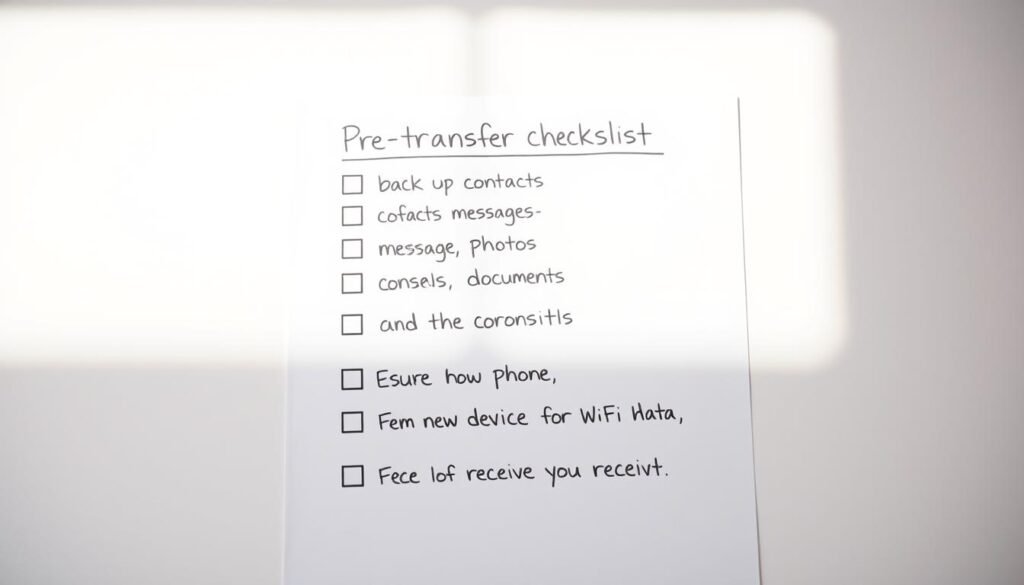
Charge, connect, and keep screens awake
Charge both phones to at least 50% and join a stable Wi‑Fi network. Set a longer screen timeout so the display won’t sleep mid‑move.
Confirm unlock access and login details
Verify you can unlock the old device with your PIN, pattern, or password. Have your Google and app login details ready to speed re‑authentication.
Make a backup and update the old device
Back up your important files and app settings to Google Drive or Google One. On many Android phones go to Settings > Google > Backup, then Backup now.
Update the OS to the latest version and remove unused apps. A leaner device moves faster and with fewer prompts.
SIM, eSIM, accounts, and final checks
Keep a SIM ejector handy for a physical SIM. If you use an eSIM, follow on‑screen prompts to download or activate it when asked.
Check accounts in settings and confirm sync is on for contacts and calendar. Finally, place both devices close together on a flat surface to avoid interruptions.
Transferring data: Fast methods using cable, wireless, or cloud
Choosing the right move method makes the switch quick and painless. Below we outline the fastest, most reliable paths so you can pick what fits your time and gear.
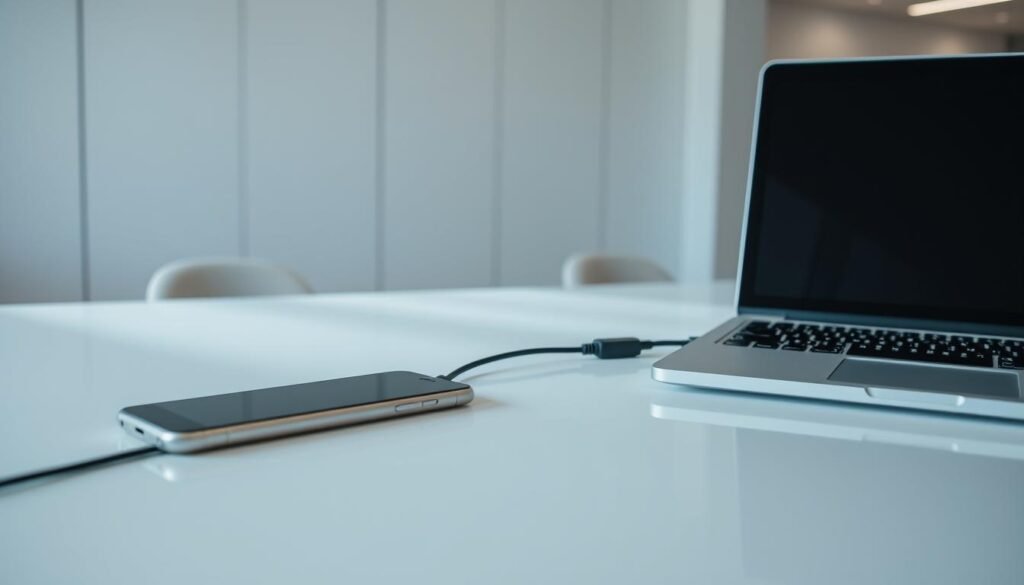
Android to Android with a cable
Use a cable for speed and completeness. Plug both phones together and choose what to copy: contacts, photos, videos, calendar events, messages, WhatsApp chats, apps, and more.
Keep the devices still and the connection steady so large photo libraries finish in the background without interruption.
Android to Android wirelessly
If you don’t have a cable, start setup and pick “No cable? Ok.” The phones will create a secure link and prompt you to pick items to move.
Follow on‑screen instructions and keep both phones near each other on the same Wi‑Fi for the smoothest process.
Restore from Google Drive or Google One
When the old phone is lost or broken, sign in to your account on the new device and restore from a recent Google Drive or Google One backup.
This cloud method gets your apps and settings back without the original phone.
iPhone to Android — cable and wireless options
A USB‑C to Lightning cable or OTG adapter copies almost everything, including messages and WhatsApp history. Disable iMessage first so texts arrive on the new phone.
The Switch to Android app offers a wireless route for contacts, photos, videos, and calendars, but note that messages and WhatsApp often require a cable for full migration.
- Quick tip: For the most complete move, use a cable and follow on‑screen instructions.
- If mobile: Wireless works fine—just keep a stable connection and patience for large files.
Manual options and special cases: Contacts, photos, WhatsApp, and passwords
We cover the quick manual routes when you only want specific items on your new phone. These steps help you move contacts, media, apps, and logins with control.
Import contacts and sync
If your contacts live in your Google Account they appear once you sign in. If they’re on a SIM, import them from Contacts > Settings in minutes.
Move photos and videos
Use Google Photos for a cloud backup or copy files to Google Drive for selective restores. Offline? Plug both phones into a computer and drag media across.
Music, apps, and streaming
Install your streaming app from Google Play and sign in. Playlists and purchases usually resync automatically. Reinstall any missing apps and check settings for account restores.
WhatsApp and message history
Run a chat backup on the old device, then restore when you open WhatsApp on the new device. iPhone‑to‑Android transfers support message history and media when you follow the official steps.
Passwords and Bluetooth accessories
Re-enable your password manager under Passwords & accounts so logins autofill. Pair earbuds, watches, and other Bluetooth accessories again for a seamless start.
| Item | Fast option | Offline option |
|---|---|---|
| Contacts | Google sync | Import from SIM |
| Photos/Videos | Google Photos / Google Drive | USB to computer copy |
| Apps & Music | Google Play / streaming apps | Manual APK or local files |
Troubleshooting common issues during the process
Small hiccups happen during phone moves; we’ll show quick fixes that save time.
If you can’t find a cable, pick “No cable? Ok.” during setup and follow the on‑screen instructions to link the phones wirelessly. Keep both devices close and on the same Wi‑Fi for best results.
No cable, slow Wi‑Fi, or setup interruptions
Move nearer the router and pause heavy downloads on other gadgets. If the transfer pauses, plug both phones into power and resume the process. Avoid switching networks mid‑move.
Broken or missing old device: Use cloud backups
When the old phone is missing or broken, choose restore from Google One or Google Drive during setup after signing in. This cloud method restores apps, media, and settings so you lose less data.
eSIM download and carrier variations
eSIM steps vary by carrier. Follow on‑device prompts to download or activate the profile. If activation fails, insert a physical sim temporarily, finish setup, then switch back to eSIM.
“If the connection drops, restart the transfer and keep both phones awake until sync finishes.”
- If items don’t appear, open the app (Photos, WhatsApp, Calendar) and allow sync to finish over Wi‑Fi.
- Double‑check app permissions for storage, notifications, and background activity.
- If errors repeat, try the cable method for a more robust route and then update remaining apps.
| Common issue | Quick fix | When to use |
|---|---|---|
| Slow Wi‑Fi | Move closer to router; pause other downloads | Large photo or video moves |
| Paused setup | Keep screens awake; plug into power; resume | Mid‑process interruptions |
| Missing old phone | Restore from cloud backup after sign‑in | Lost or broken devices |
| eSIM activation fails | Use physical SIM, follow carrier prompts | Carrier profile variations |
After setup: Verify data, accounts, and settings on your new phone
Once the initial setup finishes, spend a few minutes checking critical items on the new phone. We walk through the quick checks that make sure everything moved and that the device is secure.
Check messages, calendar entries, and app logins
Open Messages, Photos, and Calendar to confirm your data appears on the new device. If you moved from an iPhone, make sure iMessage is disabled so SMS and MMS arrive normally.
Sign into essential apps and grant permissions when prompted. Email, social apps, and cloud services need access to camera, storage, and location for full functionality.
Finish device setup, security, and payment cards
Turn on a secure screen lock and re‑enable biometrics so the new phone stays protected. Review privacy and notification settings for a comfortable daily experience.
Add your debit or credit card to the wallet app and test a small purchase when convenient. Re‑pair Bluetooth accessories and customize wallpapers and widgets to make the new device feel like home.
- Keep syncing on: Ensure Google Photos, Drive, and your password manager are backing up automatically.
- Watch background activity: Many transfers continue after setup—keep the charger nearby while apps finish updating.
- If something is missing: Revisit the transfer tool or restore selected items from a backup without resetting the phone.
“A quick post‑setup check saves time later—confirm accounts, secure the phone, and test payments before you go.”
Conclusion
A smooth finish makes your new device feel like home from day one.
Whether your old device is next to you or gone, make sure you have charged phones, Wi‑Fi ready, and login details at hand. If speed matters, use a cable, pick what to copy, and follow on-screen instructions.
Can’t use a cable? Restore from a recent backup like Google Drive or run the wireless link. iPhone users should disable iMessage first and use the Switch to Android tool or a USB‑C to Lightning cable for the fullest move.
Finally, recheck apps, contacts, and files, enable screen lock and biometrics, and give the new phone time to finish syncing in the background. If something looks off, run the tool again or move items manually—small fixes get you fully set up fast.
FAQ
How do we start moving everything from an old phone to a new Android without stress?
Begin by charging both phones, connecting to a reliable Wi‑Fi network, and keeping screens awake. Make sure you can unlock the old device and have your Google and app login details ready. Back up important items to Google Drive or Google One, update the old phone’s OS, and remove unused apps. During setup on the new phone follow the on‑screen instructions to copy content via cable, wireless transfer, or cloud restore.
What should we expect when moving from an old device to a new Android phone?
Expect guided prompts during setup that offer cable, wireless, and cloud options. Apps and Google account settings usually restore automatically from Google Play if you signed in. Some items—like SMS, WhatsApp history, passwords, and certain app data—may need extra steps or a specific backup. Carrier steps such as eSIM activation may appear later in setup.
What’s the prep checklist for a smooth transfer?
Charge both devices, connect to Wi‑Fi, unlock the old phone, confirm Google account login details, back up to Google Drive or Google One, update the OS, clear unused apps, and have your SIM or eSIM info handy for activation.
How do we move content using a cable between two Android phones?
Use the USB cable and any adapter that came with the new phone. During the new phone’s setup choose the wired transfer option and follow on‑screen prompts to copy apps, photos, messages, and settings. Keep both phones unlocked and connected until the process finishes.
Can we transfer everything wirelessly between Android phones?
Yes. During initial setup on the new device choose the wireless transfer option and follow the on‑screen instructions. Both phones should be on the same Wi‑Fi network and stay awake. Wireless transfers are convenient but may be slower than a cable for large libraries.
What if we no longer have the old phone—how do we restore to the new one?
Restore from a recent Google Drive or Google One backup during setup. Sign in with the same Google account, then choose the available backup to restore apps, contacts, calendar events, and compatible app data. Note that some app-specific files or chats might not be included unless backed up separately.
How do we move from iPhone to Android using a cable?
Disable iMessage on the iPhone first, then connect with a compatible cable during the Android setup. Follow the prompts to transfer contacts, photos, and other supported items. For WhatsApp history, use the official WhatsApp migration tool if supported by your Android model.
Is there a wireless option for iPhone to Android transfers?
Yes. Google’s Switch to Android app (or the built‑in wireless tool on some Android phones) can move contacts, messages, photos, and more without a cable. Follow the app’s on‑screen steps and ensure both devices have stable Wi‑Fi and sufficient battery.
How do we import contacts from a SIM or Google account?
For SIM imports, insert the SIM into the new phone and use the Contacts app’s import option. To sync via Google, sign in on the new phone and enable Contacts sync in Account settings. This keeps contacts backed up and synced across devices.
What’s the best way to move photos and videos?
Use Google Photos to back up from the old phone, then install and sign into Google Photos on the new phone to sync media. Alternatively, copy files via cable or a local file transfer app for large collections that you don’t want to upload to the cloud.
How do we transfer music and apps?
Apps reappear through Google Play when you sign in with the same Google account. For music, use your streaming service app (Spotify, Apple Music, etc.) and log in, or copy local files via cable or cloud storage if you own them outright.
How do we move WhatsApp chats and media securely?
Use WhatsApp’s backup to Google Drive on Android, then restore during setup on the new phone. For iPhone to Android, use WhatsApp’s official transfer feature if supported by your devices and follow the provided steps to move chat history and media.
How do we handle passwords and paired accessories?
Use a password manager to export and import credentials securely, or rely on Google Password Manager if you use Chrome and Android. Re‑pair Bluetooth accessories by enabling pairing mode on each accessory and connecting from the new phone’s Bluetooth settings.
What if we don’t have a cable or Wi‑Fi is slow?
Use cloud backups like Google Drive or Google One to restore over mobile data if necessary, or transfer smaller items manually via Bluetooth or file‑sharing apps. For large libraries, a cable or faster Wi‑Fi is recommended to avoid interruptions.
What do we do if the old device is broken or missing?
Rely on cloud backups tied to your Google account. Restore contacts, apps, and settings from Google Drive or Google One. For items not in the cloud—like certain app data—check whether the app offers its own backup or export option.
How does eSIM download and carrier setup differ across carriers?
eSIM activation varies by carrier. During setup the phone will usually prompt to transfer or download an eSIM. If it doesn’t, contact your carrier for an activation QR code or carrier app instructions. Keep your carrier account details handy for verification.
After setup, what should we verify on the new phone?
Check that messages, calendar events, contacts, and app logins restored correctly. Confirm security settings, add biometric or PIN unlock, and set up payment cards in your wallet app. Review privacy and notification permissions for apps.
Why aren’t some app settings or in‑app purchases restored?
Some apps keep settings and purchases tied to their own servers or accounts. Open the app, sign in with the same account, and check in‑app backup or restore options. Contact the app’s support if items don’t reappear.