We all know that frustrating moment when your phone dies at the worst possible time. That red battery warning can ruin your day, especially when you need your device most.
Modern phones have amazing features, but they demand a lot of energy. The good news? With smart habits, you can dramatically improve your battery performance.
This guide shares practical strategies that work for all major brands. Whether you use Samsung, iPhone, or popular models like Infinix and TECNO, these tips will help.
We understand Nigeria’s unique challenges with power fluctuations and heat. Our advice considers these real-world conditions to keep your device running longer.
You’ll discover simple adjustments to your screen settings, app usage, and charging routine. These changes require no technical expertise but deliver immediate results.
Our goal is to help you spend less time hunting for a charger and more time enjoying your phone. Let’s transform how you manage your device’s energy!
Key Takeaways
- Simple daily habit changes can significantly improve your phone’s battery performance
- These strategies work across all smartphone brands and models
- Screen brightness and app management are among the most effective adjustments
- Proper charging habits protect your battery’s long-term health
- These tips are specifically helpful in areas with power instability
- No technical knowledge required – anyone can implement these changes
- You’ll reduce charging frequency and extend your device’s overall lifespan
Understanding Smartphone Battery Basics
Smartphone power cells follow predictable degradation patterns based on usage habits. Knowing these fundamentals helps you make smarter decisions about your device’s maintenance.
Modern phones use lithium-ion batteries that gradually lose capacity over time. This natural process occurs through chemical changes during charging cycles.
How Battery Lifespan Works
Lithium-ion technology powers today’s smartphones. These batteries work through lithium ions moving between positive and negative electrodes.
Each charge cycle causes tiny, permanent changes to the battery’s chemistry. After hundreds of cycles, the battery holds less charge than when new.
Manufacturers design these power cells to maintain about 80% capacity after 300-500 complete cycles. This translates to approximately 2-3 years of normal use.
Temperature dramatically affects battery health. Extreme heat accelerates chemical degradation, while moderate temperatures preserve lifespan.
Common Factors That Drain Battery Life
Several everyday factors impact your device’s energy consumption. Recognizing these helps you optimize performance.
- Screen technology: AMOLED displays use less power showing black pixels than LCD screens
- Background processes: Apps running silently consume energy even when you’re not actively using them
- Connectivity features: Constant Wi-Fi, Bluetooth, and location services search for signals continuously
- Software efficiency: Regular updates often include better power management algorithms
- Charging habits: Keeping your battery between 50-80% charge optimizes long-term health
Completely draining your battery below 20% regularly can reduce its overall lifespan. The chemical stress from deep discharges causes faster degradation.
Different smartphone models have varying battery capacities and expected performance durations. Understanding what’s normal for your specific device helps set realistic expectations.
Some batteries may swell or degrade faster due to manufacturing variations or extreme usage patterns. Proper care minimizes these risks significantly.
Optimize Your Screen Settings for Maximum Efficiency
Your smartphone’s display consumes more energy than any other component. Making smart adjustments here delivers the biggest impact on daily battery performance.
We’ll guide you through simple changes that preserve power without compromising your experience. These tweaks work across all major brands and models.
Master Brightness Control
High screen brightness dramatically increases power consumption. The backlight requires substantial energy to maintain visibility.
For quick adjustments, swipe down from your home screen to access the notification panel. Drag the brightness slider left to reduce intensity.
Enable auto-brightness (called Adaptive Brightness on Android) for optimal results. This feature automatically adjusts your display based on ambient lighting conditions.
In bright sunlight, it increases visibility. In dim environments, it conserves energy. This smart feature balances visibility with efficiency.
Embrace Dark Themes and Wallpapers
Dark interfaces significantly reduce power consumption, especially on AMOLED displays. These screens illuminate individual pixels rather than using a full backlight.
Black pixels remain completely off, consuming zero power. This creates substantial energy savings compared to bright, colorful backgrounds.
To enable dark mode, open settings and navigate to display options. Both Android and iOS offer system-wide dark themes that apply across most applications.
Choose darker wallpapers for additional savings. Simple, dark backgrounds minimize energy usage while maintaining aesthetic appeal.
Smart Screen Timeout Settings
Screen timeout determines how quickly your display turns off when inactive. Shorter durations prevent unnecessary power drain.
For most users, 30 seconds provides the ideal balance between convenience and efficiency. This gives enough time to resume activity while minimizing waste.
To adjust this setting, tap the gear icon and navigate to display options. Select screen timeout and choose your preferred duration.
Samsung Galaxy users can find this at Settings > Display > Screen timeout. iPhone users will find similar options in Display & Brightness settings.
| Setting | Recommended Value | Estimated Battery Saving |
|---|---|---|
| Screen Brightness | Auto/Adaptive | Up to 30% daily |
| Screen Timeout | 30 seconds | 15-20% improvement |
| Wallpaper Color | Dark themes | Up to 15% on AMOLED |
| Always On Display | Scheduled/Disabled | 5-10% preservation |
Consider disabling or scheduling Always On Display features. These continuously show information even when your device sleeps.
While convenient, they maintain partial screen activity that consumes power. Scheduling them for specific hours or disabling them entirely improves daily performance.
These display optimizations can add hours to your battery life. They require minimal effort but deliver maximum results for years of better device performance.
Manage Your Charging Habits Wisely
Charging habits can make or break your mobile device’s longevity and daily performance. Many users overlook this simple aspect of phone maintenance, but smart practices here can add months or even years to your battery’s lifespan.
We’ll guide you through proven methods that work with Nigeria’s unique power situation. These strategies help whether you have stable electricity or face regular outages.
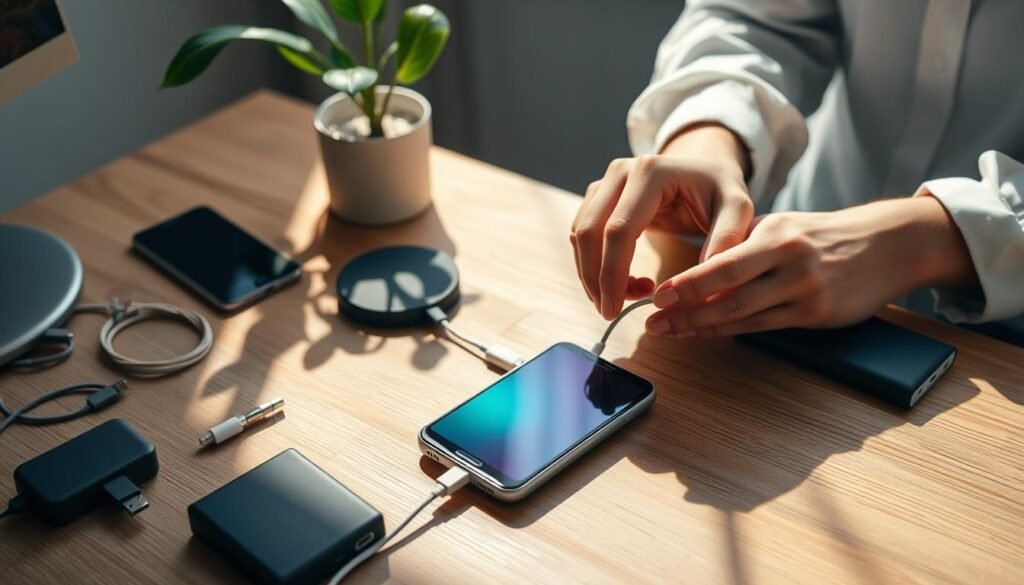
Avoid Overnight Charging
Leaving your device plugged in all night creates unnecessary stress on the battery. Most phones complete charging within 2-3 hours, while people typically sleep 6-8 hours.
This extended period causes “trickle charging” where the battery constantly bounces between 99-100%. This wasteful cycle accelerates chemical degradation over time.
Some batteries may even swell or develop problems from continuous overcharging. For safety and longevity, we recommend charging before bedtime then unplugging.
Don’t forget to switch off the wall socket too! This saves power and prevents potential electrical issues.
Keep Battery Between 50-80%
The sweet spot for lithium-ion batteries is maintaining charge between 50-80%. This range minimizes stress on the battery’s chemical components.
Instead of one long charging session, try shorter bursts throughout the day. Top up when you see the percentage dropping toward 50%.
This approach works particularly well with Nigeria’s power patterns. You can charge during available electricity hours without worrying about complete cycles.
For those with irregular power supply, power banks offer excellent flexibility. They let you maintain optimal charge levels regardless of main electricity availability.
Use Original Chargers Only
Always use the charger that came with your phone or genuine replacements. Different devices have specific power requirements that original accessories match perfectly.
Third-party chargers often deliver incorrect current levels. This can cause slow charging, reduced performance, or even damage to your battery over time.
If your original charger gets damaged, purchase an official replacement that matches your phone’s specifications. Check the power rating to ensure compatibility.
For on-the-go needs, consider car chargers or solar options. These provide reliable alternatives when traditional power sources aren’t available.
These smart charging habits require minimal effort but deliver maximum results. Your device will perform better daily and maintain its health for years to come.
How to Extend Your Smartphone Battery Life: 10 Proven Tips with Smart Features
Modern smartphones include intelligent tools designed to conserve energy when you need it most. These built-in features help your device operate efficiently without sacrificing essential functionality.
We’ll explore three powerful methods that significantly improve daily performance. Each option works across different brands and models.
Enable Battery Saver Mode
This special setting adjusts multiple functions to preserve energy. It automatically reduces screen brightness and limits background activity.
Accessing this feature varies slightly between devices. For most Android phones, navigate to Settings > Battery > Power saving mode.
iPhone users can find similar options under Settings > Battery > Low Power Mode. Both systems allow quick activation through notification panels.
You can schedule this mode to activate automatically at specific charge levels. Many users set it to engage at 20% or 30% remaining power.
Utilize Flight Mode When Possible
Airplane mode temporarily disables all wireless communications. This includes cellular networks, Wi-Fi, and Bluetooth connections.
Use this feature during meetings, movies, or when focusing on tasks. Even short periods in flight mode help conserve significant energy.
Your phone stops constantly searching for signals in this state. This reduces background processes that drain power unnecessarily.
Remember to reactivate connectivity when you need communication services again. The savings make this temporary disable worthwhile.
Turn Off Unnecessary Connectivity
Wireless features consume energy even when not actively used. Bluetooth, GPS, and Wi-Fi continuously scan for available connections.
Disable these services when they’re not needed. Simply pull down your notification panel and tap the relevant icons to switch them off.
This practice prevents constant background searching that drains your battery. It’s one of the simplest ways to make your charge last longer.
Many users leave these features enabled out of habit. Developing the routine to disable them can add hours to your daily runtime.
| Feature | Activation Method | Estimated Savings | Best Use Cases |
|---|---|---|---|
| Battery Saver | Settings > Battery | 20-30% | Low charge situations |
| Flight Mode | Quick settings panel | 15-25% | Meetings, sleep, focused work |
| Wi-Fi/Bluetooth Off | Notification toggle | 10-15% | When not needed for 1+ hours |
| Location Services | Settings > Security & Location | 5-10% | When not using navigation |
These smart features work together to create substantial energy savings. They help your device maintain performance throughout busy days.
Proper use can extend your battery life by significant margins. This means fewer charges and better long-term health for your phone.
Experiment with different combinations to find what works best for your usage patterns. Many users report excellent results with these simple adjustments.
Control Background Processes and Apps
Invisible app activities could be reducing your phone’s endurance daily. Many applications continue working silently even when you’re not actively using them.
These hidden operations consume precious energy reserves without your knowledge. We’ll show you how to identify and manage these power-draining elements.
Uninstall or Disable Unused Apps
Unused applications still run background processes that deplete your battery. Regular maintenance of your app collection significantly improves performance.
To remove unwanted apps, long-press any icon on your home screen. Select the Uninstall option and confirm your choice.
For more detailed management, open Settings and navigate to your Apps menu. Use the overflow icon to sort by size or permissions.
Some pre-installed applications cannot be completely removed. For these, choose the Disable option to prevent background activity.
Regular app maintenance improves both battery life and overall device performance.
Social media and email applications are particularly resource-intensive. They frequently check for updates and notifications in the background.
Consider disabling automatic sync for these apps if you don’t need instant updates. This simple change preserves substantial energy.
Limit Location Services and Wi-Fi Scanning
Location services represent major battery drainers on modern phones. Many applications request this permission unnecessarily.
To manage these settings, open Settings and select Location. Review App permissions and choose “Allow only while using” for essential apps.
For non-essential applications, select “Don’t allow” to completely disable location access. This prevents constant GPS usage.
Wi-Fi scanning continues searching for networks even when Wi-Fi is disabled. This feature drains power silently throughout the day.
To turn this off, navigate to Settings > Location > Location Services. Find Wi-Fi scanning and toggle it off.
Manage App Sync Settings
Application sync settings control how frequently apps check for updates. Reducing this frequency can save significant power.
Most email and social media apps offer sync interval options. Choose longer intervals like 30 minutes or manual sync instead of immediate updates.
For Samsung Galaxy devices, specific paths include Settings > Apps > [overflow icon]. This lets you sort applications by their battery usage patterns.
Regular review of these settings helps maintain optimal performance. We recommend checking them monthly as your usage patterns change.
| Action | Estimated Savings | Difficulty Level |
|---|---|---|
| Uninstall unused apps | 10-15% daily | Easy |
| Disable location services | 5-10% improvement | Medium |
| Reduce sync frequency | 8-12% preservation | Easy |
| Disable Wi-Fi scanning | 3-5% additional | Medium |
These background process controls work together to create substantial energy savings. They help your device maintain performance throughout busy days.
Proper management can extend your battery life by significant margins. This means fewer charges and better long-term health for your phone.
Adopt Daily Habits for Long-Term Battery Health
Your daily routines significantly impact your device’s endurance over time. Small, consistent practices protect your investment and ensure reliable performance for years.
We’ll explore three essential habits that complement technical adjustments. These approaches work particularly well in Nigeria’s unique climate and power conditions.
Avoid Extreme Temperatures
Heat and cold dramatically affect battery chemistry. High temperatures accelerate chemical degradation, while extreme cold reduces performance temporarily.
Never leave your phone in a parked car during hot days. Glove compartments can become ovens that permanently damage your device’s power cell.
Direct sunlight causes rapid temperature rise during usage. Avoid gaming or camera sessions in sunny conditions to prevent overheating.
For people working in hot environments like bakeries, use your phone sparingly. Store it in cooler areas when not actively needed.
Give Your Phone Regular Breaks
Intensive tasks generate substantial heat that strains your battery. Regular pauses help maintain optimal temperature levels.
After extended gaming or video streaming, allow your device to cool down. This simple practice preserves both performance and longevity.
These breaks also benefit your digital wellness. Reduced screen time decreases eye strain and improves overall phone relationship.
Even short intervals make a significant difference. Just five minutes of rest can prevent overheating during heavy usage.
Consider Alternative Charging Methods
Nigeria’s power challenges require creative solutions. Alternative charging options provide reliability during outages.
Car chargers offer excellent convenience for commuters. They transform travel time into productive charging sessions.
Modern solar chargers work efficiently even in overcast conditions. They harness available light to keep your device powered.
Power banks provide portable security for unpredictable situations. Choose capacities matching your daily needs for best results.
| Habit | Benefit | Ideal Frequency | Impact Level |
|---|---|---|---|
| Temperature Awareness | Prevents chemical degradation | Constant vigilance | High |
| Usage Breaks | Reduces heat buildup | Every 45-60 minutes | Medium-High |
| Car Charging | Utilizes commute time | As needed during travel | Medium |
| Solar Power | Works during outages | Daylight hours | Medium |
These daily habits combine with technical adjustments for comprehensive battery care. They help your phone last longer through Nigeria’s challenging conditions.
Consistent practice creates substantial benefits over time. Your device will maintain better performance and require fewer repairs.
Remember that battery preservation is both technical and habitual. The right routines keep your investment secure for years of reliable service.
Conclusion
Proper battery maintenance extends your phone’s usable years while reducing repair needs. Combine your favorite techniques from our guide for maximum impact.
Smart charging habits and settings adjustments work together beautifully. They help your device last longer despite Nigeria’s power challenges.
If your battery life doesn’t improve after consistent application, consider professional help. For Infinix, TECNO, and itel smartphones, Carlcare provides official repair services.
Remember – small changes create big results over time. Your phone will thank you with better performance and fewer charging sessions!
FAQ
What is the best way to charge my phone to extend battery life?
We recommend keeping your battery level between 50% and 80% for optimal health. Avoid overnight charging and always use original chargers and cables for safe, efficient power delivery.
Does dark mode really help save battery on smartphones?
Yes, especially on phones with OLED or AMOLED displays like Samsung Galaxy and iPhone models. Dark themes and wallpapers reduce power consumption by lighting fewer pixels.
How often should I update my phone’s software for battery performance?
Install updates as soon as they’re available. Software updates often include optimizations that improve battery efficiency and fix background processes that drain power.
Is it bad to use my phone while it’s charging?
Using your device during charging can generate excess heat, which may reduce battery lifespan over time. For best results, avoid heavy usage like gaming or video streaming while plugged in.
Can extreme temperatures damage my phone’s battery?
Absolutely. Both extreme heat and cold can harm lithium-ion batteries. Avoid leaving your phone in direct sunlight or very cold environments to maintain battery health.
Should I close background apps to save battery life?
While some apps drain battery in the background, most modern phones like iPhone and Android manage apps efficiently. Instead, focus on limiting location services, sync settings, and notifications for unused apps.
How long do smartphone batteries usually last before needing replacement?
Most smartphone batteries last 2–3 years with regular use. You can extend this by following good charging habits, avoiding extreme temperatures, and using battery saver modes when needed.