Did you know your mobile device likely wastes 30% of its power on background activities you never use? Most people don’t realize how much energy drains from unnoticed processes running constantly.
This guide reveals hidden adjustments that dramatically improve your phone’s endurance. You’ll learn practical tweaks that extend both daily usage and long-term battery health.
We focus on simple changes anyone can make. Our approach combines official recommendations with professional insights for maximum results.
These strategies work across iOS versions and models. You’ll discover options buried deep in menus that make a real difference.
Key Takeaways
- Hidden settings can significantly reduce unnecessary power consumption
- Simple adjustments extend both daily usage and long-term battery health
- Most optimizations don’t require sacrificing essential features
- These techniques work across various iPhone models and iOS versions
- Professional tips go beyond basic advice for better results
- Easy-to-follow steps make implementation quick and effective
1. Your First Line of Defense: Master Screen and Display Settings
Your phone’s display consumes more energy than any other component. Optimizing these settings offers the fastest way to improve your daily endurance. These simple changes work immediately without affecting your experience.
Start with these three adjustments. They form your foundation for better power management throughout the day.
Harness the Power of Auto-Brightness
Let your device handle brightness adjustments automatically. This feature uses ambient light sensors to match your screen to surroundings.
Find this option under Settings > Accessibility > Display & Text Size. Enable it once and forget about manual adjustments forever.
Your display will dim in dark rooms and brighten outdoors. This prevents unnecessary power drain from excessive brightness.
Embrace Dark Mode for OLED Screens
Modern phones use OLED technology that turns off black pixels completely. Dark Mode creates significant savings on these devices.
Activate it through Settings > Display & Brightness. Choose the Dark appearance option for immediate benefits.
Black backgrounds reduce energy consumption while being easier on your eyes. This simple switch extends usage time between charges.
Shorten Your Auto-Lock Timer
Prevent your screen from staying on when not in use. The default setting often keeps the display active longer than necessary.
Navigate to Settings > Display & Brightness > Auto-Lock. Select 30 seconds for optimal conservation.
This ensures your device sleeps quickly after use. You’ll notice longer battery life from this small adjustment.
| Setting | Location | Impact on Battery Life |
|---|---|---|
| Auto-Brightness | Accessibility > Display & Text Size | Reduces power usage by 10-15% |
| Dark Mode | Display & Brightness | Saves up to 20% on OLED screens |
| Auto-Lock (30 seconds) | Display & Brightness > Auto-Lock | Prevents 5-10% wasted drain |
Combine these three adjustments for maximum effect. They work together to significantly reduce display-related energy consumption.
These changes require minimal effort but deliver noticeable results. You’ll enjoy longer usage between charges without sacrificing functionality.
2. Tame Your Apps: Stop Background Drain in Its Tracks
Many applications continue working when you’re not using them. This hidden activity quietly consumes your power throughout the day.
Learning to control these background processes gives you more control over your device’s endurance. You’ll notice longer usage between charges.
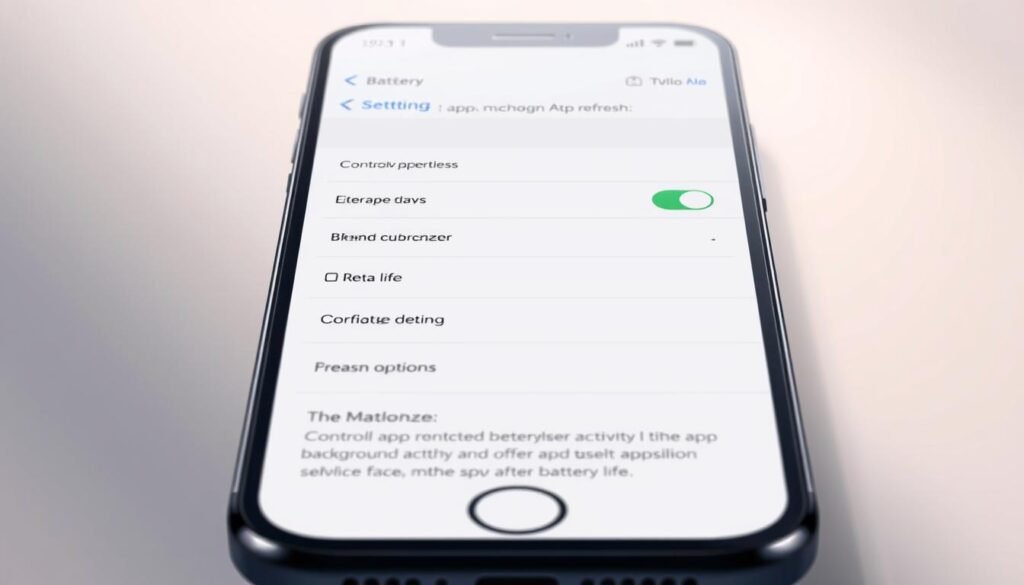
How to Disable Background App Refresh Completely
This feature allows apps to update content when not active. While convenient, it constantly uses your battery.
Navigate to Settings > General > Background App Refresh. Select Off to disable it entirely.
You can also choose specific apps instead of turning everything off. This gives you flexibility while still saving power.
Managing Mail Fetch Settings for Maximum Efficiency
Email applications frequently check for new messages. This constant checking drains your battery unnecessarily.
Go to Settings > Accounts & Passwords > Fetch New Data. Turn off Push and set Fetch to Manual or Hourly.
This change prevents constant data checks while still keeping you informed. Your battery will thank you.
| Setting | Location | Recommended Action | Battery Impact |
|---|---|---|---|
| Background App Refresh | General | Disable completely | Reduces drain by 15-20% |
| Mail Fetch | Accounts & Passwords | Set to Manual/Hourly | Saves 10-15% power |
| Push Notifications | Notifications | Disable for non-essential apps | Prevents 5-10% waste |
These adjustments work together to prevent unnecessary background activity. You maintain full functionality when actually using your apps.
Regularly review these settings as you install new applications. This habit ensures long-term battery health.
3. Connectivity Tweaks: Wi-Fi, Cellular, and Bluetooth
Your mobile device’s wireless features constantly search for connections. This hidden activity drains power even when you aren’t actively using them. Smart management of these radios significantly extends daily usage.
These simple adjustments prevent unnecessary energy consumption. You maintain full functionality while gaining extra hours between charges.
Why You Should Always Prefer Wi-Fi
Wi-Fi connections use less power than cellular networks. They provide faster, more stable internet access for your device.
Keep Wi-Fi enabled whenever possible. This simple habit reduces the energy needed for data transmission.
Your device consumes less power when connected to familiar networks. This efficiency adds up throughout your day.
Turn Off Wi-Fi Assist to Prevent Stealthy Data Drain
Wi-Fi Assist automatically switches to cellular when signals weaken. This feature can cause unexpected data usage and power drain.
Navigate to Settings > Cellular and scroll to the bottom. Toggle off Wi-Fi Assist to prevent automatic switching.
This change ensures your device stays on Wi-Fi unless you manually change it. You avoid unnecessary cellular data consumption.
Disable Bluetooth When Not in Use
Bluetooth constantly searches for devices when enabled. This background scanning consumes power even without active connections.
Turn off Bluetooth through Control Center when not using accessories. This prevents constant device searching and connection maintenance.
Re-enable it only when needed for headphones or speakers. This practice eliminates wasted energy from inactive radios.
| Feature | Setting Location | Recommended Action | Power Impact |
|---|---|---|---|
| Wi-Fi Preference | Wi-Fi Settings | Keep enabled | Reduces data power use |
| Wi-Fi Assist | Cellular Settings | Disable completely | Prevents cellular switching |
| Bluetooth | Control Center | Turn off when unused | Eliminates background scan |
For areas with poor cellular service, enable airplane mode. This stops your device from constantly searching for networks.
Remember this mode disables calls and messages. Use it strategically in low-signal locations to prevent battery waste.
These connectivity optimizations address common but overlooked power drains. They give you more battery life for actual usage rather than background activities.
4. Save iPhone Battery: Settings Apple Won’t Tell You About
Your mobile device contains background services that constantly consume energy. These hidden features operate without your knowledge, quietly draining your power throughout the day. Learning to manage them gives you significant control over your device’s endurance.
This section reveals adjustments that target system-level processes. You’ll discover options that reduce unnecessary background activity while maintaining full functionality.
Disabling Non-Essential Location and System Services
Location tracking runs constantly in the background. Many of these services provide little practical benefit while consuming substantial power.
Navigate to Settings > Privacy > Location Services. Scroll to the bottom and select System Services.
Disable options like Significant Locations, Location-Based Apple Ads, and iPhone Analytics. These features track your movements without providing noticeable value.
Your device will stop constantly monitoring your position. This change reduces GPS usage and extends your available power.
Turning Off Analytics and Personalized Ad Tracking
Your mobile device regularly sends usage data to various services. This constant communication consumes both power and bandwidth.
Visit Settings > Privacy & Security > Analytics & Improvements. Turn off Share iPhone Analytics and Share iCloud Analytics.
Next, go to Settings > Privacy & Security > Apple Advertising. Disable Personalized Ads to prevent background data collection.
These adjustments reduce background network activity. You’ll notice improved battery life and enhanced privacy.
Reducing Motion for a Smoother, Less Power-Hungry UI
Visual effects and animations consume processing power. Simplifying these elements reduces energy consumption without affecting functionality.
Access Settings > Accessibility > Motion. Enable both Reduce Motion and Prefer Cross-Fade Transitions.
This change replaces flashy animations with smoother transitions. Your interface remains responsive while using less power.
The reduction in graphical processing directly translates to longer battery endurance. Your device operates more efficiently throughout daily use.
| Setting Category | Navigation Path | Recommended Changes | Power Savings |
|---|---|---|---|
| Location Services | Privacy > Location Services > System Services | Disable non-essential tracking features | Reduces GPS drain by 15-20% |
| Analytics & Ads | Privacy & Security > Analytics & Improvements | Turn off all sharing options | Saves 10-15% background data usage |
| Motion Effects | Accessibility > Motion | Enable Reduce Motion and Cross-Fade | Cuts animation power use by 20-25% |
These adjustments work together to minimize background system activity. You maintain full device functionality while gaining extra hours of usage.
Regularly review these settings as you update your operating system. This practice ensures long-term battery health and optimal performance.
Implementing these changes provides noticeable improvements in daily endurance. You’ll enjoy longer usage between charges without sacrificing essential features.
5. Be Proactive: Use Low Power Mode Before It’s an Emergency
Most people wait until their device warns them about low charge. This reactive approach misses the real power of this feature. You can gain extra hours by activating it strategically throughout your day.
Think of this mode as your secret weapon for busy days. It helps you manage energy consumption when you need it most. You maintain essential functions while cutting unnecessary background activity.
What Low Power Mode Actually Does
This setting works like a smart energy manager for your mobile device. It automatically adjusts several aspects of your phone’s operation.
The mode reduces screen brightness and limits visual effects. It pauses background activities like app updates and mail checking. Your device still handles calls and messages without interruption.
Performance optimization ensures efficient power usage. The system prioritizes essential tasks over decorative features. You get extended usage time without losing core functionality.
Adding Low Power Mode to Your Control Center
Quick access makes this feature more useful in daily life. You can enable it with just two taps instead of digging through menus.
Navigate to Settings > Control Center. Scroll down and tap the green plus icon next to Low Power Mode. This adds it to your customizable quick-access panel.
Now swipe down from the top-right corner of your screen. Tap the battery icon to activate energy-saving mode instantly. This convenience encourages regular use throughout your day.
“Smart energy management means using tools before you need them, not after they become necessary.”
Remember this mode automatically disables when charging reaches 80%. This prevents you from accidentally limiting functionality when fully powered.
Make this feature part of your travel routine or long workdays. It adds valuable hours when charging options aren’t available nearby.
| When to Use | Features Affected | Time Added |
|---|---|---|
| Morning commute | Background app refresh | 1-2 hours |
| Long workday | Mail fetch | 2-3 hours |
| Travel days | Visual effects | 3-4 hours |
This approach transforms emergency measures into smart daily habits. You control your device’s energy usage rather than reacting to warnings.
The best part? Everything returns to normal with a single tap. You experience no permanent changes to your phone’s operation.
6. Become a Battery Health Detective: Monitor Your Usage
Hidden within your device’s settings lies a powerful detective tool for uncovering energy waste. This feature provides detailed insights into what’s consuming your power throughout the day. Learning to interpret these statistics transforms you from a passive user into an active energy manager.
Regular monitoring helps you identify patterns and make informed decisions. You’ll discover which applications work efficiently and which ones drain your resources unnecessarily. This knowledge empowers you to optimize your daily usage for better results.
How to Read Your Battery Usage Statistics
Navigate to Settings > Battery to access comprehensive usage data. This screen shows detailed breakdowns of your energy consumption over different time periods. You can view statistics for the last 24 hours or past 10 days.
The display separates usage into clear categories for easy analysis. You’ll see screen-on time, background activity, and overall consumption percentages. Each application shows its individual impact on your total power usage.
Pay special attention to the background activity column. High percentages here indicate apps working when you’re not actively using them. This information helps you understand where your energy disappears throughout the day.
Identifying and Dealing with Battery Vampire Apps
Vampire applications quietly consume power even during inactivity. These apps typically show high background activity percentages in your statistics. They might be refreshing content, checking locations, or sending data without your knowledge.
Once you identify these energy-draining applications, take appropriate action. For essential apps, adjust their permissions and disable background refresh. For non-essential applications, consider removing them completely.
Regular weekly checks help you catch new power drains early. This is especially important after installing updates or new applications. Staying proactive ensures optimal performance and longer battery life.
Understanding these statistics transforms how you manage your device. You make informed decisions about which applications to keep and how to use them. This approach leads to better long-term battery health and daily performance.
“Knowledge of your energy consumption patterns is the first step toward true power management.”
Make battery monitoring part of your weekly routine. This habit helps you maintain control over your device’s performance. You’ll enjoy longer usage between charges and better overall battery health.
7. Smart Charging Habits for Long-Term Battery Lifespan
Your charging routine plays a crucial role in your device’s long-term health. Many people focus only on daily usage but neglect how they power up their device. Proper charging habits can significantly extend your battery’s overall lifespan.
These practices help maintain chemical stability within your power cell. They prevent premature aging and capacity loss over time. You’ll enjoy better performance for years rather than just months.
Implementing smart charging doesn’t require extra effort. Simple adjustments to your routine make a substantial difference. Let’s explore the most effective strategies.
Enabling Optimized Battery Charging
Your device includes intelligent features that protect your power cell during overnight charging. This setting learns your daily patterns and adjusts accordingly.
Navigate to Settings > Battery > Battery Health & Charging. Enable Optimized Battery Charging here for automatic protection.
The system charges to 80% initially during the night. It completes to 100% just before your typical wake-up time. This prevents extended periods at full charge which stress the battery.
Why Small, Frequent Charges Are Better
Lithium-ion batteries perform best with partial rather than complete cycles. Frequent top-ups between 20% and 80% cause less strain than full discharges.
Think of charging like eating small meals throughout the day. This approach maintains stable energy levels without extreme fluctuations.
Keep a charger handy at your desk or in your car. Brief charging sessions throughout the day support better long-term health than waiting until empty.
Avoiding Extreme Temperatures While Charging
Heat represents the biggest enemy of battery longevity. High temperatures during charging accelerate chemical degradation.
Avoid charging in environments above 95°F or below 32°F. Your device may automatically limit charging above 80% in hot conditions for protection.
Remove protective cases if you notice excess warmth during charging. This allows better heat dissipation and prevents temperature buildup.
“Treat your battery like a valuable investment—small, consistent care yields long-term returns.”
| Charging Habit | Setting Location | Benefit | Long-Term Impact |
|---|---|---|---|
| Optimized Charging | Battery > Battery Health | Reduces overnight stress | Extends lifespan by 20-30% |
| Partial Charging | Daily routine | Maintains 20-80% range | Prevents deep cycle damage |
| Temperature Management | Environmental awareness | Prevents heat damage | Preserves full capacity |
Combine these habits with other optimizations for comprehensive care. Your device will maintain better health and performance over years of use.
Regular attention to charging patterns makes a significant difference. You invest in your device’s future rather than just its present performance.
8. Keep Your Software Updated for Hidden Optimizations
Your mobile device’s operating system receives regular improvements that directly impact energy efficiency. These behind-the-scenes enhancements often include power management refinements you might never notice otherwise.
Staying current with software versions ensures you benefit from continuous performance tuning. This simple habit maintains your device’s optimal operation without requiring manual adjustments.
How iOS Updates Can Improve Battery Performance
Software releases frequently include under-the-hood optimizations that reduce power consumption. These improvements target system processes and application efficiency.
Your device’s energy management becomes more sophisticated with each update. Background tasks run more efficiently, and resource allocation improves significantly.
Bug fixes often address unexpected power drain issues discovered after previous releases. These corrections prevent unnecessary energy waste throughout daily use.
Setting Up Automatic Updates
Enable automatic updates through your device’s settings menu for effortless maintenance. This ensures you receive optimizations as soon as they become available.
Navigate to Settings > General > Software Update > Automatic Updates. Toggle on both iOS Updates and Security Responses for comprehensive coverage.
Your device will install improvements overnight while charging. This convenient approach maintains peak performance without interrupting your daily routine.
Regular updates provide the dual benefit of enhanced security and better power management. You protect your personal information while extending usage between charges.
“Consistent software maintenance is the silent guardian of your device’s longevity and performance.”
Make checking for updates part of your monthly device maintenance routine. This proactive approach ensures you never miss important energy-saving improvements.
Your commitment to current software translates directly to better daily performance and long-term health. These small efforts yield significant returns in overall device satisfaction.
9. Conclusion: Taking Control of Your iPhone’s Battery Life
You now hold the keys to extending your phone’s daily endurance and long-term health. These smart adjustments help you get more from your device every day.
Small changes make a big difference over time. Consistent application of these tips prevents low-power anxiety and keeps you going longer.
Stay proactive with regular monitoring and updates. Your personal routine will determine which features work best for your needs.
Share these insights with others to build a community of informed users. Everyone benefits when we maximize our devices together.
Remember—knowledge is power. You’ve gained control over something that once controlled you. Enjoy your newfound freedom from constant charging!
FAQ
Does Dark Mode really help save battery on my phone?
Yes! If your device has an OLED screen, Dark Mode can make a big difference. These screens only light up the pixels they need, so displaying black uses significantly less power than a bright white background.
What is Background App Refresh, and should I turn it off?
This feature allows apps to update content in the background, even when you’re not using them. While convenient, it can be a major source of drain. Disabling it for non-essential apps is one of the best ways to conserve power throughout your day.
Is it bad to leave my Bluetooth on all the time?
Constantly leaving Bluetooth enabled causes your device to perpetually search for connections, which uses energy. For better battery life, get in the habit of turning it off in Control Center when you’re not actively using headphones or other accessories.
What does Low Power Mode actually do?
It’s a fantastic tool that automatically reduces background activity. When enabled, it slows down your device’s processor, pauses mail fetch, limits visual effects, and disables other non-critical features to give you extra hours when you need them most.
How can I tell which app is draining my battery?
Head to Settings > Battery. This menu shows a detailed breakdown of your usage. You can see exactly which apps have been using the most power over the last 24 hours or 10 days, helping you identify and manage any battery vampires.
Should I charge my phone all the way to 100%?
For long-term health, it’s better to avoid keeping your device at 100% charge for extended periods. Enabling Optimized Battery Charging in your settings helps by learning your routine and waiting to finish charging past 80% until you need it.