The latest iOS update brings exciting changes to your device. It marks a major shift from previous versions with its liquid glass redesign and smart AI-powered tools.
Many hidden features in this system boost daily usability. They help users personalize their experience and save time.
The upcoming iOS 26.1 release in November 2025 will refine these tools. It focuses on making your iPhone more intuitive and frustration-free.
Key Takeaways
- iOS 26 introduces a fresh design and advanced AI capabilities.
- New features enhance personalization and everyday convenience.
- The update includes tools that reduce common user frustrations.
- iOS 26.1 arrives in late 2025 with further improvements.
- Exploring these features maximizes your device’s potential.
- Many helpful options are easy to overlook but offer real benefits.
- This update makes your iPhone more versatile and user-friendly.
Unlocking iOS 26: Your iPhone’s 10 Hidden Features You’ve Been Waiting For
Experience a new level of smartphone sophistication with these carefully crafted system enhancements. The latest operating system brings subtle yet powerful tools that transform how you interact with your device daily.
Why iOS 26 Changes Everything for iPhone Users
This software release marks a significant shift in mobile technology. It introduces intelligent design choices that make your device more intuitive than ever before.
Dual-SIM users and frequent travelers will appreciate the streamlined cellular management. The Control Center now offers quick access to network settings. This simplifies switching between carriers without digging through menus.
Fitness enthusiasts gain new flexibility with custom workout creation. You can design personalized routines directly on your device. No Apple Watch is required for this convenient feature.
The interface feels more responsive with polished animations throughout. Every swipe and tap delivers smoother visual feedback. This creates a more seamless user experience.
How These Hidden Features Enhance Your Daily Experience
Apple Music receives gesture-based navigation for easier control. Swipe gestures let you manage playback with one hand. This makes music enjoyment more convenient during activities.
Content creators benefit from enhanced audio recording settings. The updated options provide professional-grade sound capture. Your recordings will sound clearer and more polished.
Photo sharing becomes simpler with an improved interface. Larger buttons and better organization help manage your visual library. Sharing memories with friends and family feels more effortless.
Call reliability improves with haptic feedback for call status. Your device vibrates to confirm successful connections. This proves invaluable in noisy environments where audio cues might be missed.
Language support expands significantly across the system. Live translation works with AirPods for real-time conversations. Broader language options make the device more inclusive for global users.
| Feature Category | Before iOS 26 | After iOS 26 | User Benefit |
|---|---|---|---|
| Cellular Management | Multiple menu navigation | Control Center access | Faster network switching |
| Workout Creation | Watch required | Direct phone creation | More flexibility |
| Music Control | Button tapping | Gesture navigation | One-handed operation |
| Audio Recording | Basic settings | Enhanced options | Professional quality |
| Photo Sharing | Small interface | Improved layout | Easier organization |
These thoughtful improvements work together to create a more efficient daily experience. Each subtle change addresses common user frustrations while adding meaningful functionality. Your device becomes not just smarter, but more attuned to your needs.
Finally Master Your Alarm: Custom Snooze Durations
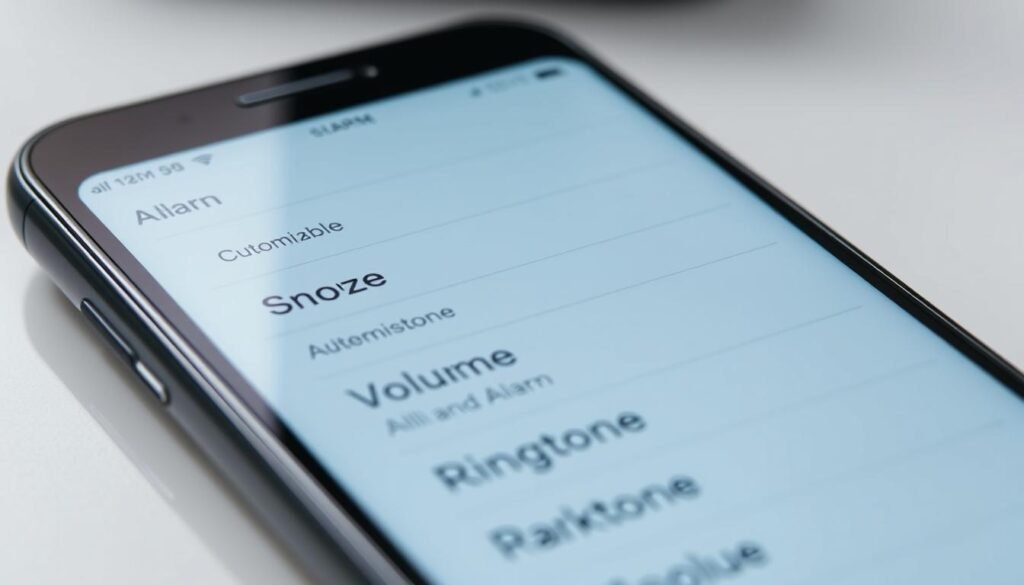
Say goodbye to the rigid 9-minute snooze and hello to flexible wake-up options. This update brings personalization to your morning routine like never before.
Breaking Free from the 9-Minute Tradition
The nine-minute snooze has roots in analog clock design. Early mechanical alarms used gears that made this interval practical. Digital technology kept the tradition alive without questioning it.
This update challenges that decades-old convention. It recognizes that sleep patterns vary among different people. The one-size-fits-all approach no longer fits modern needs.
How to Set Personalized Snooze Times for Each Alarm
Open the Clock app on your device. Select any existing alarm or create a new one. Tap the Snooze Duration option to reveal customization settings.
Choose any interval between one and fifteen minutes. This setting applies individually to each alarm you create. Remember to adjust it for every new alarm you set up.
The process takes seconds but offers lasting convenience. Your preferences stay saved until you decide to change them again.
Why This Simple Change Makes Mornings Better
Custom intervals align with natural sleep cycles. Some people prefer shorter breaks between alerts. Others need more time to gradually wake up fully.
Workdays might call for five-minute snoozes for quick readiness. Weekends could use longer ten-minute intervals for relaxed waking. This flexibility reduces morning stress significantly.
Early testers report feeling more refreshed throughout their day. They appreciate controlling this small but important part of their routine. The change demonstrates thoughtful design that respects user preferences.
This seemingly small adjustment has big impact on daily life. It transforms a frustrating limitation into personalized convenience. Your mornings become smoother and more tailored to your needs.
Create Custom Ringtones Without Extra Apps
Personalize your phone’s sound identity with built-in tools that make customization effortless. The latest update transforms how you create and assign unique audio alerts.
The End of GarageBand Dependency
Creating personalized sounds no longer requires additional software. Previous methods demanded GarageBand or computer access. This created unnecessary complexity for simple customization.
The new approach uses native system capabilities instead. Your device now handles the entire process internally. This eliminates the need for external applications completely.
Step-by-Step: Converting Audio Files to Ringtones
Open the Files application on your device. Locate any MP3 or M4A file under thirty seconds. Longer clips won’t work for this particular feature.
Tap the Share button in the bottom corner. Select “Use as Ringtone” from the menu options. The system automatically processes the file for immediate use.
Voice Memos recordings work perfectly through this method. The share sheet integration makes the process seamless. Your personalized alert tones become ready within moments.
Assigning Unique Tones to Specific Contacts
Navigate to Settings and choose Sounds & Haptics. Select Ringtone to set a default tone system-wide. This applies to all incoming calls without specific assignments.
For individual contacts, open your address book. Choose any person and edit their information. Scroll to find the ringtone option for that specific contact.
Family members can have distinctive alert tones. Work contacts might use different sounds for quick identification. This personalization helps prioritize incoming calls effectively.
The convenience saves significant time compared to older methods. You avoid complicated workarounds and third-party applications. Your device becomes more expressive and personally tailored.
This creative feature adds fun to everyday communications. It demonstrates thoughtful design that respects user preferences. Your phone reflects your personality through customized audio experiences.
Advanced Message Control: Selective Text Copying
Messaging just became more precise with new text selection tools. This update brings smarter copying options to your conversations.
You can now grab specific parts of messages instead of entire bubbles. This eliminates the frustration of copying unwanted text.
No More Copying Entire Message Bubbles
Previous versions required copying complete message content. This often included timestamps or surrounding text.
The new approach gives you pinpoint accuracy. You select only the exact words you need.
Precision Selection for Passwords and Codes
Security information benefits greatly from this improvement. Verification codes can be copied without extra characters.
Passwords remain secure when shared in parts. You avoid exposing complete sensitive information accidentally.
How This Saves Time and Reduces Frustration
The process works through simple touch controls. Press and hold any message bubble to begin.
Tap “Select” when the menu appears. Adjust the handles to highlight your desired text portion.
Real-world scenarios show immediate benefits. Quick copying of addresses or numbers becomes effortless.
Frequent message users gain significant time savings. Partial information sharing happens with fewer steps.
| Situation | Before Update | After Update | Time Saved |
|---|---|---|---|
| Verification Codes | Copy entire message | Select numbers only | 15 seconds |
| Address Sharing | Manual typing | Precise copy/paste | 30 seconds |
| Password Parts | Screenshot editing | Direct text selection | 45 seconds |
| Quick Details | Multiple attempts | One-time selection | 20 seconds |
This feature works across various messaging platforms. iMessage and third-party apps support the functionality.
Best practices involve using both selection handles. Drag them independently for perfect text capture.
The improvement creates a smoother messaging experience. Your device becomes more helpful in daily communication tasks.
Smart Battery Insights: Charge Time Estimates
Say hello to smarter power management with intelligent charging insights. This clever addition takes the guesswork out of power planning for your device.
When you connect to power, helpful information appears automatically. The system calculates remaining time based on current battery levels.
See Exact Times to 80% and Full Charge
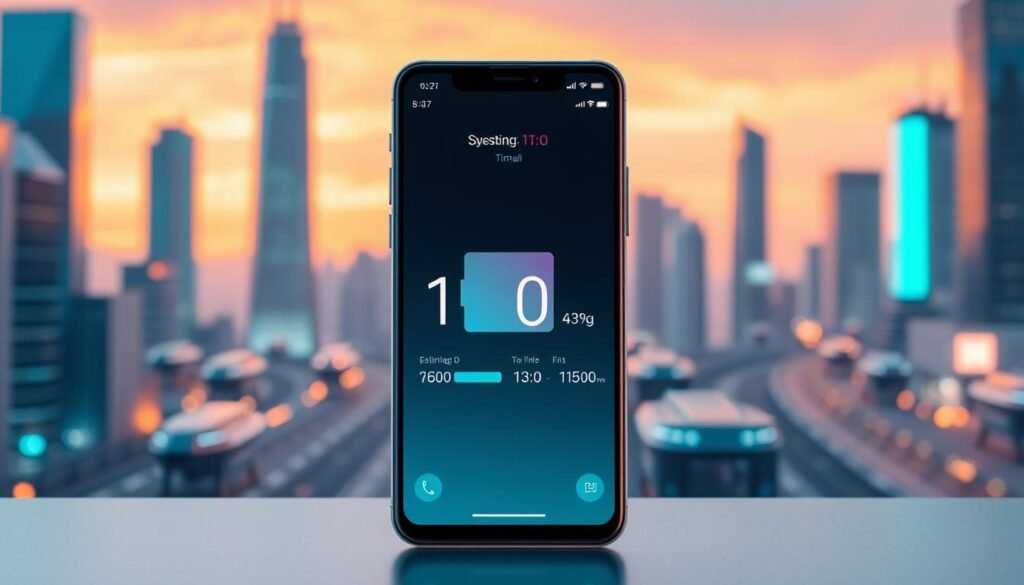
Your screen displays two important time estimates during charging. The first shows minutes until 80% capacity is reached.
The second number indicates total time until complete charging. This dual information helps you make informed decisions about power needs.
These predictions update dynamically as charging progresses. The system recalculates based on changing conditions and usage patterns.
Lock Screen and Settings Battery Information
Charge time details appear directly on your lock screen when powered. This allows quick checking without unlocking your device.
The same information lives in Settings under the Battery section. This gives permanent access even when not actively charging.
Both locations provide identical timing information. The feature works seamlessly across different access points.
Planning Your Charging Around Your Schedule
This insight transforms how you manage daily power needs. Quick top-offs before leaving home become perfectly timed.
Morning routines benefit greatly from these predictions. You know exactly when your device will be ready for the day.
Busy professionals appreciate the scheduling assistance. The feature helps maximize limited charging opportunities throughout busy days.
| Charging Scenario | Without Time Estimates | With Time Estimates | Time Saved |
|---|---|---|---|
| Morning Preparation | Constant checking | One-time glance | 5-7 minutes |
| Work Break Charging | Uncertain completion | Precise planning | 10-15 minutes |
| Evening Top-Up | Overcharging risk | Optimal stopping | Prevents battery stress |
| Travel Preparation | Guesswork | Confident planning | Reduces anxiety |
Early beta versions might show occasional timing inconsistencies. These minor issues don’t diminish the overall usefulness of this feature.
The system helps maintain better battery health long-term. You avoid unnecessary overcharging and optimize charging cycles.
This intelligent addition makes power management truly smart. Your device becomes more helpful in everyday situations.
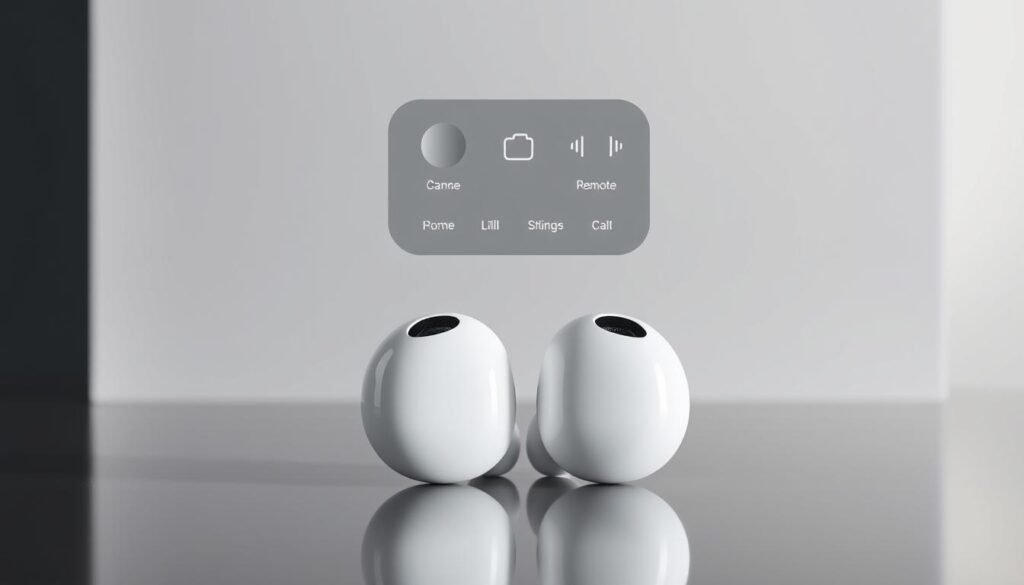
AirPods Become Your Camera Remote
Discover a clever way to capture moments without touching your screen. This innovative approach turns your wireless earbuds into a photography tool.
The system works seamlessly with your existing gear. No extra equipment or complicated setup is required.
Double-Tap Photography Magic
Activating this function is wonderfully simple. Open your Camera app as you normally would.
Frame your shot and get ready. Double-tap either AirPod to capture the image instantly.
The tactile feedback confirms your successful shot. You’ll feel a subtle vibration through the earbuds.
Perfect Group Shots and Tripod Scenarios
Group photography becomes much easier with this method. Everyone can fit in the frame without someone missing.
Tripod users gain significant benefits too. Your shots remain perfectly steady without finger contact.
Family gatherings and professional sessions both improve. The remote trigger eliminates camera shake completely.
Expanding Your Creative Possibilities
Creative options multiply with this hands-free approach. Action sequences and timed shots become simpler to execute.
Various AirPods models support this functionality. Most recent generations work with the feature.
Photography enthusiasts will appreciate the convenience. It adds fun to capturing special moments.
This simple trick opens new photographic horizons. Your creative expression grows without additional equipment.
Adaptive Power Mode: Smart Battery Management
Your device gains intelligent energy management that works behind the scenes. This clever system adjusts itself based on what you’re doing throughout the day.
How Your iPhone Now Optimizes Performance Automatically
Navigate to Settings > Battery > Power Mode to explore this feature. The system monitors your activity patterns and makes real-time adjustments.
It reduces background processes during simple tasks like music streaming. This conservation extends your available usage time significantly.
Balancing Power Saving and Performance Needs
The technology perfectly balances energy conservation with processing power. You get smooth operation when needed and extended life when possible.
Gaming sessions trigger maximum performance mode automatically. The system recognizes demanding applications and responds accordingly.
“True intelligence in power management means the device understands context without user intervention.”
When Adaptive Mode Works Best for Different Activities
This feature excels during varied daily routines. Morning commutes with podcast listening activate power saving.
Afternoon photo editing sessions receive full processing capability. Evening movie streaming gets optimized battery preservation.
| Activity Type | Power Mode Response | Battery Impact | User Experience |
|---|---|---|---|
| Music Streaming | Background process reduction | 40% less consumption | Longer playback time |
| Mobile Gaming | Full performance activation | Higher usage rate | Smooth gameplay |
| Video Calls | Balanced mode | Moderate consumption | Clear communication |
| Reading | Maximum conservation | Minimal drain | All-day availability |
Various iPhone models support this intelligent feature. It adapts to different usage styles and battery health conditions.
Users who frequently forget to toggle settings benefit most. The system handles everything automatically behind the scenes.
Trust the adaptive technology to manage your power needs. It learns from your habits and improves over time.
This smart approach to energy management extends device longevity. Your battery stays healthier through optimized charging cycles.
Conclusion: Transforming Your iPhone Experience with iOS 26
Apple’s latest software release elevates the user experience through thoughtful refinements. These practical enhancements work together to create a more intuitive and personalized daily interaction with your device.
The upcoming November 2025 update brings meaningful improvements worth exploring. From smarter battery management to creative photography tools, each addition saves time and reduces frustration.
Share your favorite discoveries with fellow users as you explore the system. This update makes technology more adaptable and enjoyable for everyone.
Embrace these changes to unlock your device’s full potential. The focus on user-friendly design creates a smoother, more efficient mobile experience.
FAQ
How do I set a custom snooze time for my alarm in iOS 26?
Open the Clock app, tap on your alarm, and you’ll see a new “Snooze” option. Tap it to choose your preferred duration, whether that’s 5, 10, or 15 minutes, instead of the old 9-minute default.
Can I really make a ringtone without using GarageBand now?
Absolutely! Go to Settings > Sounds & Haptics > Ringtone. Tap “Add New Ringtone” and you can select any song from your Apple Music library or a sound file from your device to convert into a custom tone instantly.
How does the new selective text copying work in Messages?
Simply press and hold on a message bubble. Instead of selecting the whole thing, you’ll now get a text cursor that lets you precisely highlight just the numbers, words, or part of the message you want to copy, which is perfect for codes and addresses.
Where do I find the new battery charge time estimate?
When you plug in your device, the charge time estimate will appear right on your Lock Screen. You can also see it in the Battery section of your Settings, showing the time needed to reach both 80% and a full 100% charge.
How do I use my AirPods as a camera remote?
Make sure your AirPods are connected, then open the Camera app. When you’re ready to take a photo, just double-press the stem on your AirPods. This acts as a shutter button, making it easy to capture group shots or use a tripod without touching the screen.
What is Adaptive Power Mode and how does it work?
This is a smart new feature that automatically adjusts your device’s performance based on how you’re using it. It will conserve battery during light tasks like reading, but boost power when you’re gaming or editing videos, all without you needing to manually change settings.